How to fill in a document
Any document is made of sections. Fill them in any order, everything is saved automatically; the bar and the section colour show what is left.
Create a document
On the main screen press Create document and choose the type:
- Defect report — this is usually where a repair starts;
- Equipment inspection act;
- Work order;
- Completion act.
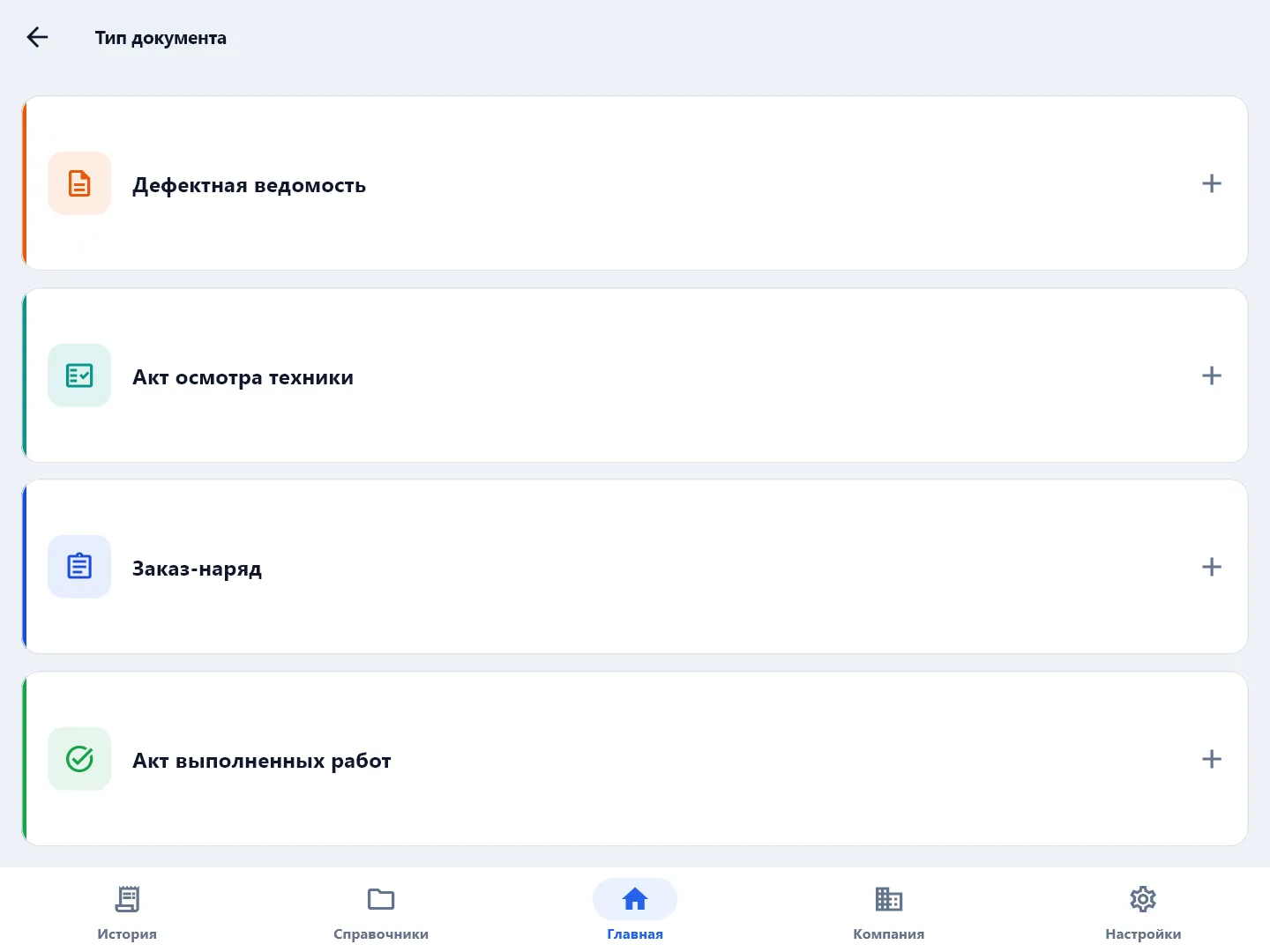
A document for a manager's job is created from the job itself — Jobs from the manager.
Create based on
Documents follow the repair chain: inspection act → defect report → work order → completion act. The next document is conveniently started from the previous one: on the draft check screen press Create based on: … — for example "Create based on: Work order" in the defect report. The customer, the equipment and the customer's responsible person carry over; the rest is filled in again.
Sections
The document opens as a list of sections. Each has a state:
| State | What it means |
|---|---|
| Not filled | There is nothing in the section yet |
| Partly | Started, but not all required fields are there |
| Filled | The section is ready |
| Needs attention | Something to fix — open the section |
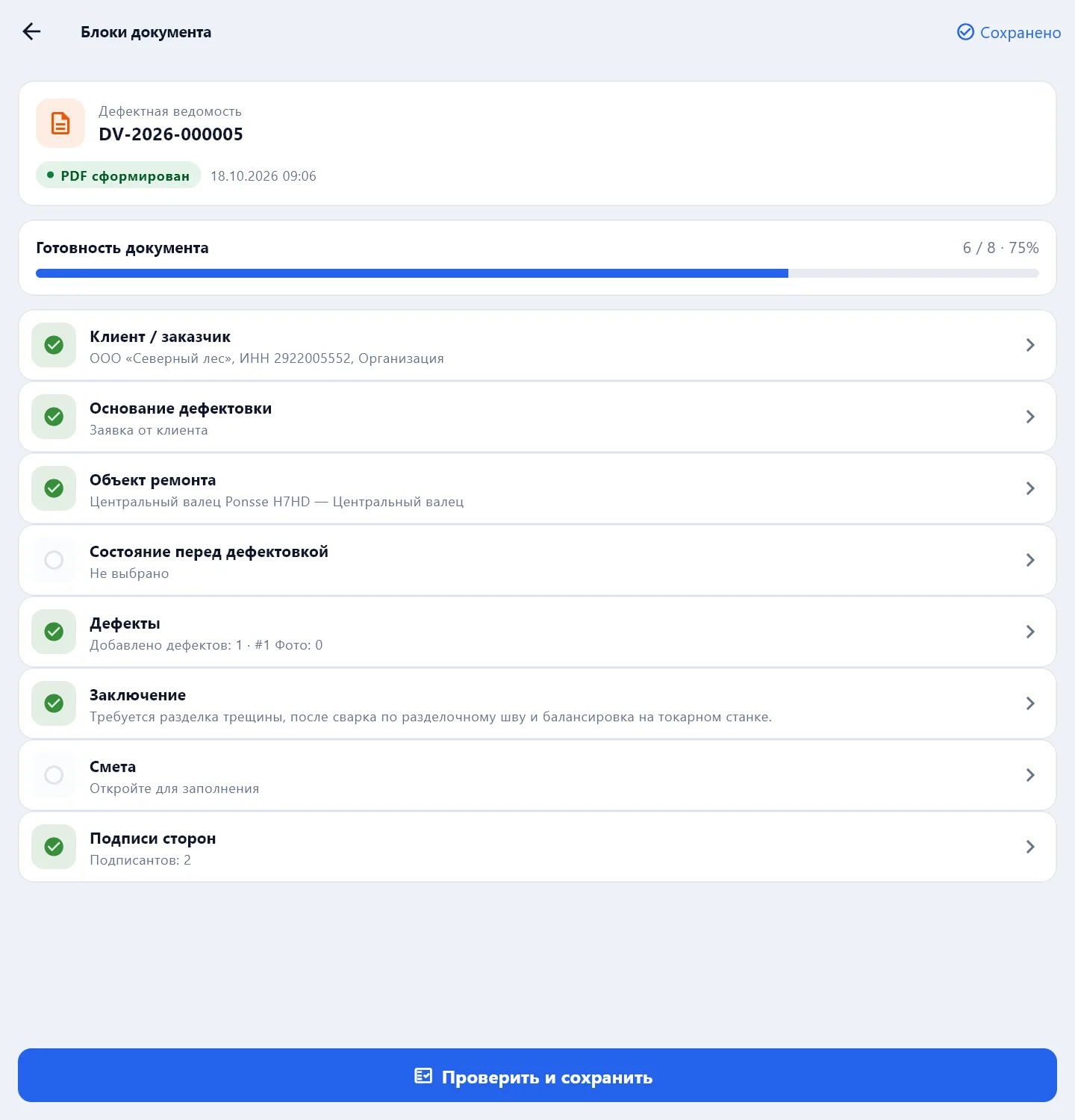
The bar at the top shows how much is filled. The Next button inside a section leads to the following one, but you can fill them in any order. Everything is saved automatically — when moving between sections and when closing the app.
The customer, the equipment, work types and parts are picked from directories. No matching entry — Create in directory straight from the section, and next time it will be in the list.
Sections by document type
| Document | Sections |
|---|---|
| Defect report | Customer, Basis for defect detection, Object of repair, Condition before defect detection, Defects, Conclusion, Estimate, Signatures |
| Equipment inspection act | Customer, Basis for inspection, Inspection location, Equipment, Inspection stages, Conclusion, Signatures |
| Work order and completion act | Basic details, Equipment / object of work, Information from the customer, Operations, Cost of work, Materials, Work periods, Photos, Note, Signatures |
More about each on the pages Defect report, Inspection act, Work order and completion act.
Check and save
When the sections are filled, press Check and save. The draft check opens: if a required section is empty, the app says which one and offers to go there. If a recommended one is missing — signatures, for example — you can Continue without signatures.
Next comes the PDF and sending to the customer: PDF and sending to the customer.
Delete a document
On the draft check screen — Delete draft; the app asks again. Delete only what you definitely do not need: a document that has already gone to the customer is better fixed and sent again.