Internal review and work control
Review — so a mechanic's document does not go to the customer with a mistake. Control — how much each person did and how often documents came back.
Internal review
By default the mechanic sends the document to the customer directly. If every document should first be seen by someone in the company, enable review: the Company section → the Approval block → tick Check documents inside the company before sending to the customer → Save.
After that, a document the mechanic sent for approval first lands in the Review section. A controller or admin decides:
- Open PDF — see the whole document: defects, photos, estimate, signatures.
- Checked — send to the customer — the document goes to the customer for approval.
- Return — the document goes back to the mechanic; in the Comment to the technician field write what to fix.
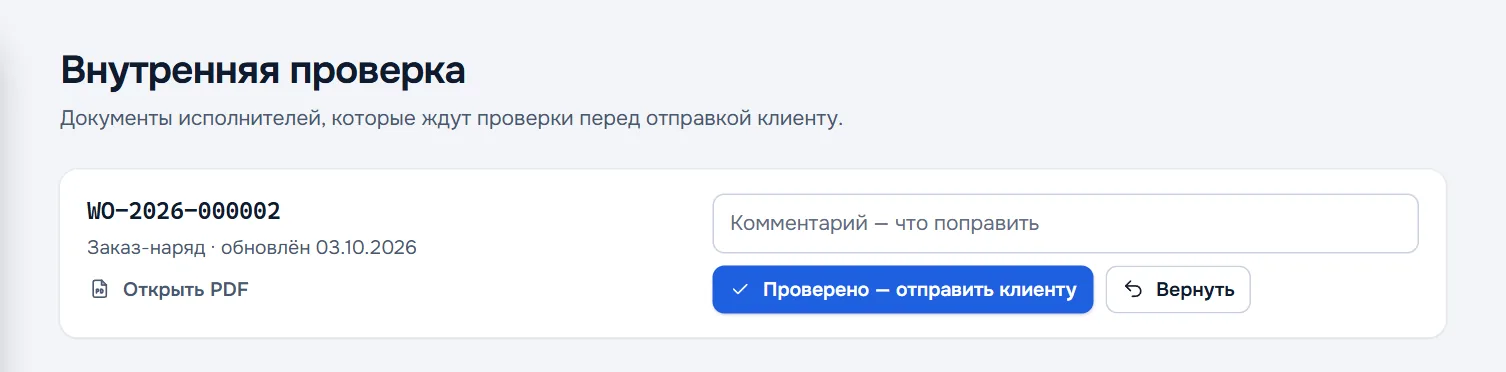
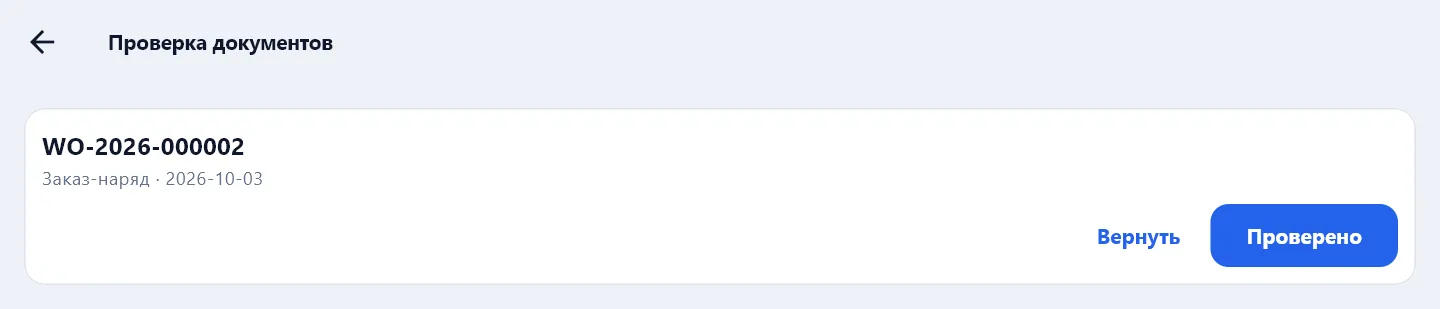
The number of documents under review appears on the Overview in the Needs attention block. Reviewing is also possible in the app: Settings → Document checks — the same Checked and Return buttons with a comment.
Work control
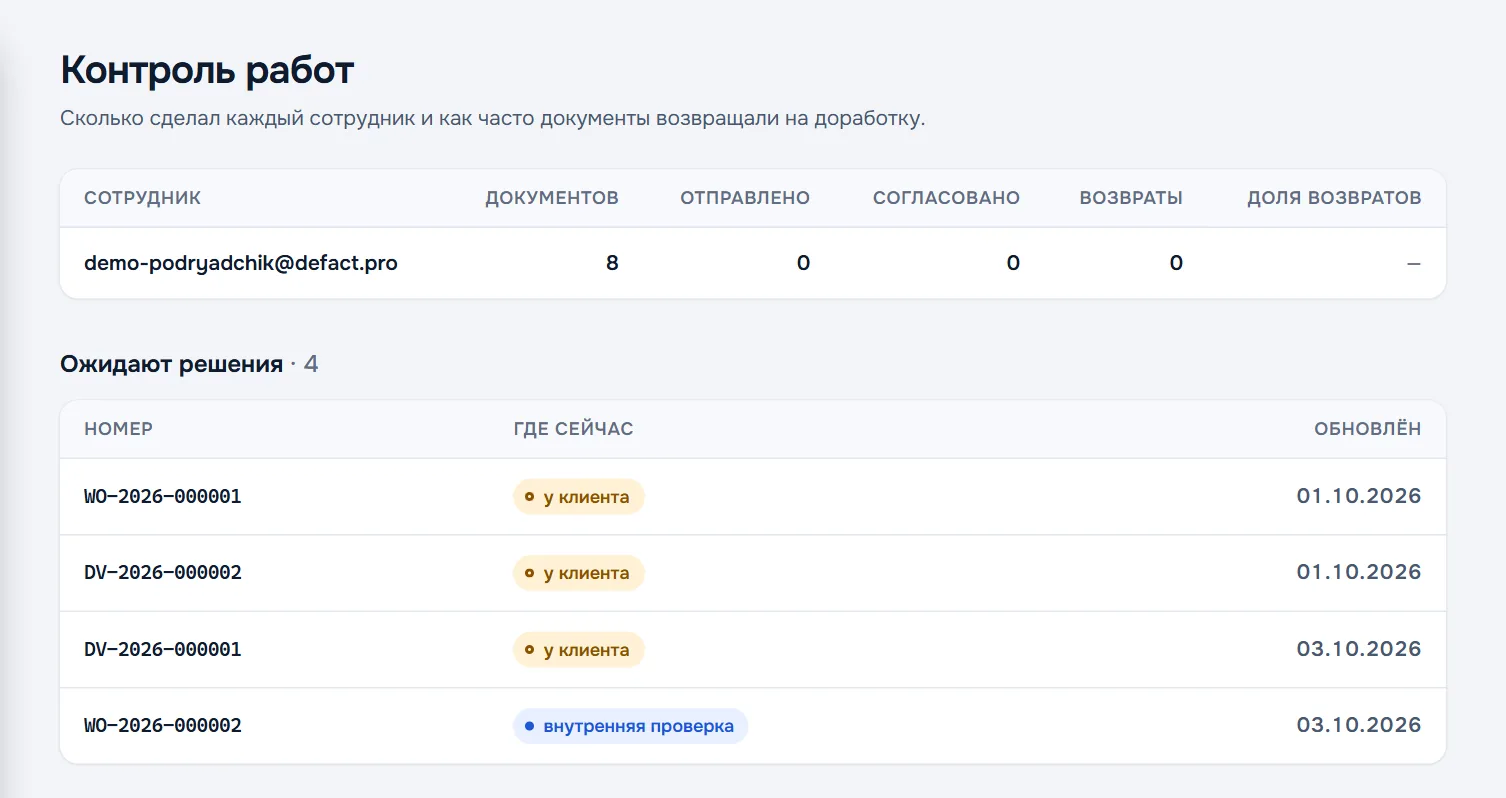
The Control section — a table by employee:
| Column | What is counted |
|---|---|
| Documents | How many documents the employee made |
| Sent | How many of them went to the customer for approval |
| Approved | How many the customer approved |
| Returns | How many the customer returned for rework |
| Return share | Returns out of sent — the lower, the cleaner the work |
Below — documents awaiting a decision: the number, where the document is now (under review in the company or with the customer) and when it was updated.
A document was returned for rework
If the customer returned a document, it appears on the Overview in the line Returned by the customer for rework, with the customer's comment. The mechanic fixes the document in the app and sends it again — the document number does not change.