PDF and sending to the customer
A finished document is a PDF. It can be printed, forwarded as a file, or sent to the customer for approval in their portal.
Building the PDF
In the document press Check and save — the draft check opens. If everything required is filled in, press Build PDF. No connection is needed for that.
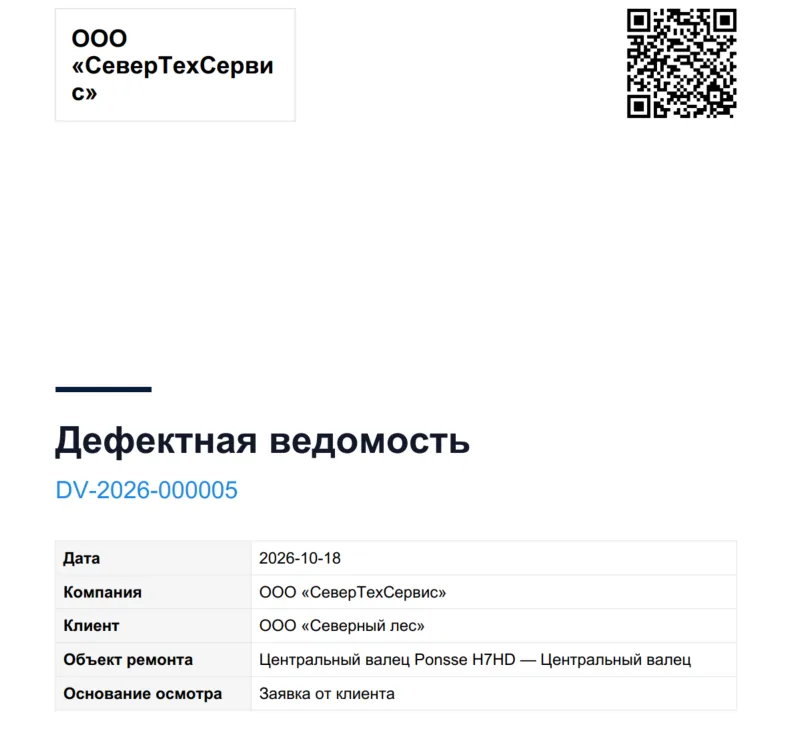
After that you can:
- Open and print;
- Share the PDF — to a messenger, email, a drive;
- Send for approval — to the customer's portal, see below.
The PDF carries the company details and logo, the document number, all sections, annotated photos and signatures. If the company has a subscription or a trial, the PDF has a QR code: the customer or an auditor can use it to check the document is genuine. Without a subscription the PDF carries a free-mode mark.
Sending for approval
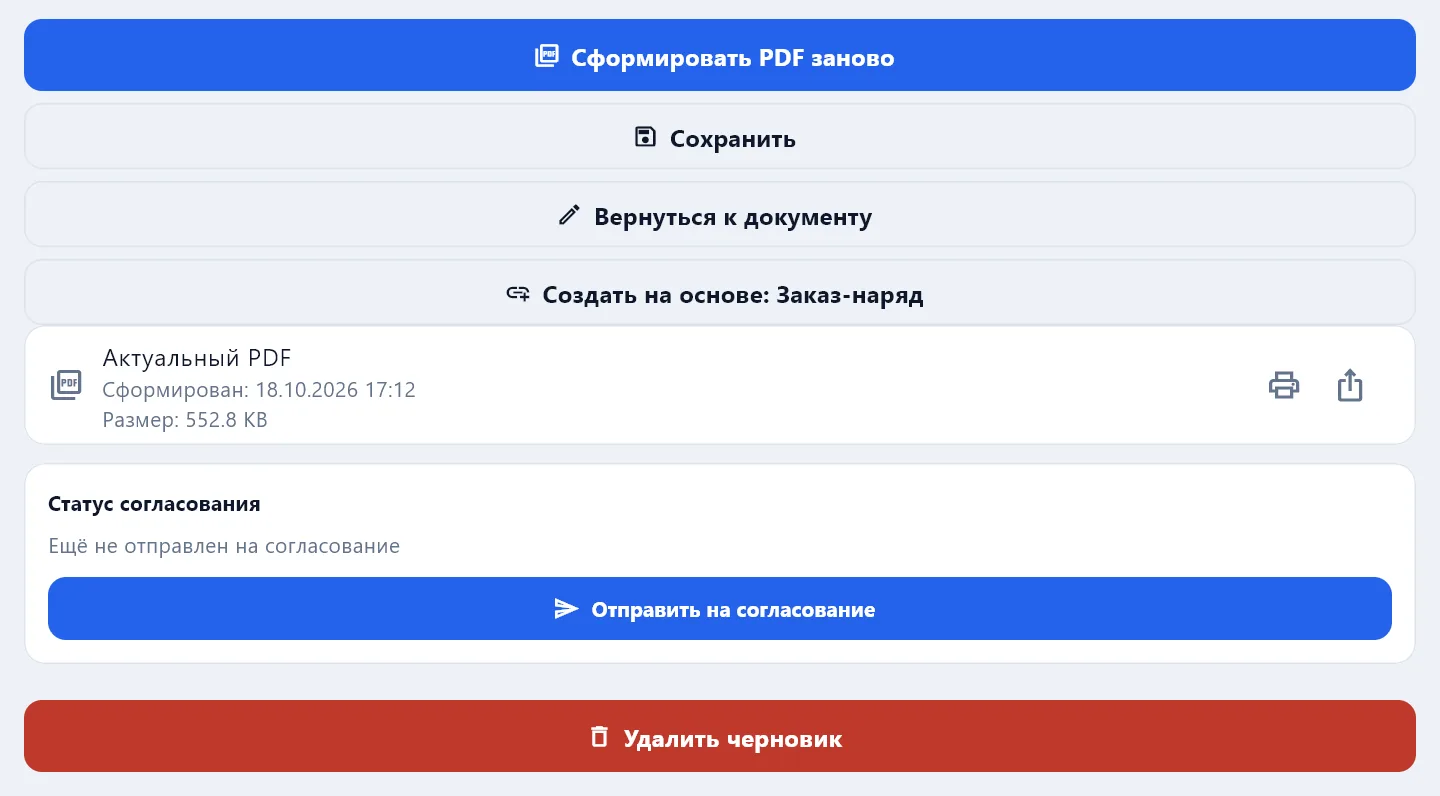
Send for approval sends the document to the customer's portal. For that you need:
- to be signed in and working in a company;
- a customer specified in the document;
- the customer to have a responsible person with an email, or to be connected to DefAct — then their employees see the document.
If internal checking is enabled in the company, the document first goes to a controller or admin and reaches the customer after the check.
The customer receives an email, opens the document in the portal and presses Approve or Return for rework. The decision arrives in the app at the next sync, and the manager gets it by email.
Statuses
| Status | What it means |
|---|---|
| Draft | The document is being filled in |
| PDF built | The PDF is ready, the document is not sent yet |
| Changed after PDF | The document was edited after the PDF — build it again |
| Awaiting sync | The document is ready and waiting for a connection to reach the server |
| Under review | Internal review inside the company |
| Awaiting approval | Waiting for the customer's decision |
| Approved | The customer approved it |
| Returned for rework | The customer or the reviewer sent it back |
The PDF is outdated
If the document is edited after the PDF, the app marks Outdated PDF and offers Build the PDF again. The customer must receive the current PDF: the app will not send an outdated one for approval.
The document came back
The status is Returned for rework, and the document shows the customer's or the reviewer's comment on what to fix. Press Edit, correct it, build the PDF again and send it for approval once more. The document number does not change.