Customers and customer access
Customer cards, their equipment and repair history. From here you also see which of the customer's people approves your documents in their portal.
Where customers come from
Customers, their equipment and responsible people are entered in the app's directories — a mechanic can add a customer right on site. Many customers at once are easier to upload as an Excel table in the Company data section. After sync everything appears in the Customers section.
The section is available to an admin and a controller.
Customer card
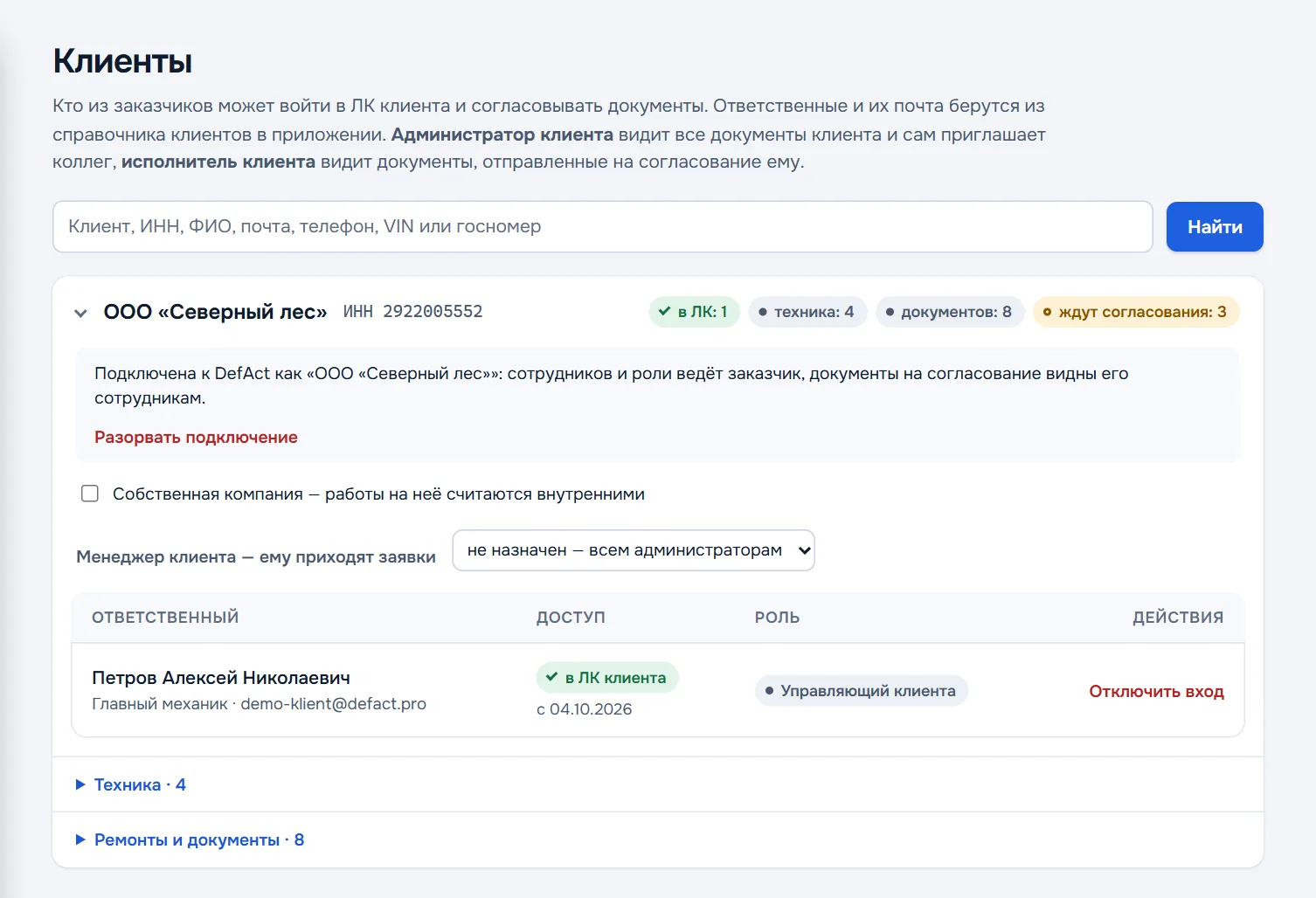
The search line finds a customer by name, tax number, the responsible person's name, email, phone, VIN or plate number. The card header shows how many people the customer has in the portal, how much equipment and how many documents, and how many await approval. Inside:
- Responsible people — the customer's people, their access and role in the customer portal.
- Equipment — numbers, hours and how many documents per unit.
- Repairs and documents — all documents for the customer with the approval status.
- Customer manager — the employee who receives emails about this customer's requests. Not assigned — every admin receives them.
- Own company — tick it if this is your own organisation: work for it counts as internal in statistics.
Inviting the customer to their portal
For the customer to approve documents themselves, the responsible person on the customer card must have an email in the app. After sync an invitation goes out, and the Access column shows "invitation sent".
| Access | What it means |
|---|---|
| in the customer portal | The person accepted the invitation and approves documents |
| invitation sent | The email went out, the person has not signed up yet; the date the link is valid until is shown |
| invitation expired | The link is stale — press Send again |
| not invited | Press Invite |
| no email | Add the email in the app's directory |
| access revoked | You revoked this person's access |
Roles of the customer's people
- A customer admin sees all the customer's documents and invites colleagues themselves.
- A customer technician sees only documents sent to them for approval.
Whoever accepts the invitation first gets the customer owner role. Once the customer has connected to DefAct as their own company, they run their employees and roles themselves — the card says so: "the customer manages employees and roles". You see them but cannot change them.
Revoking access
Revoke access for a specific person — they no longer see your documents. Disconnect — disconnect the customer's whole company from yours. Documents are not deleted by that.