Directories — customers, equipment, work and parts
Directories are filled once; after that the customer, the equipment, the work and the parts are picked from a list. They are shared across the company and reach every device.
Which directories there are
The Directories tab:
- Customers — clients, their responsible people and branches;
- Equipment — units of the customers' equipment: make, model, numbers, hours;
- Work types — names of work and prices;
- Parts and materials — with article numbers and prices.
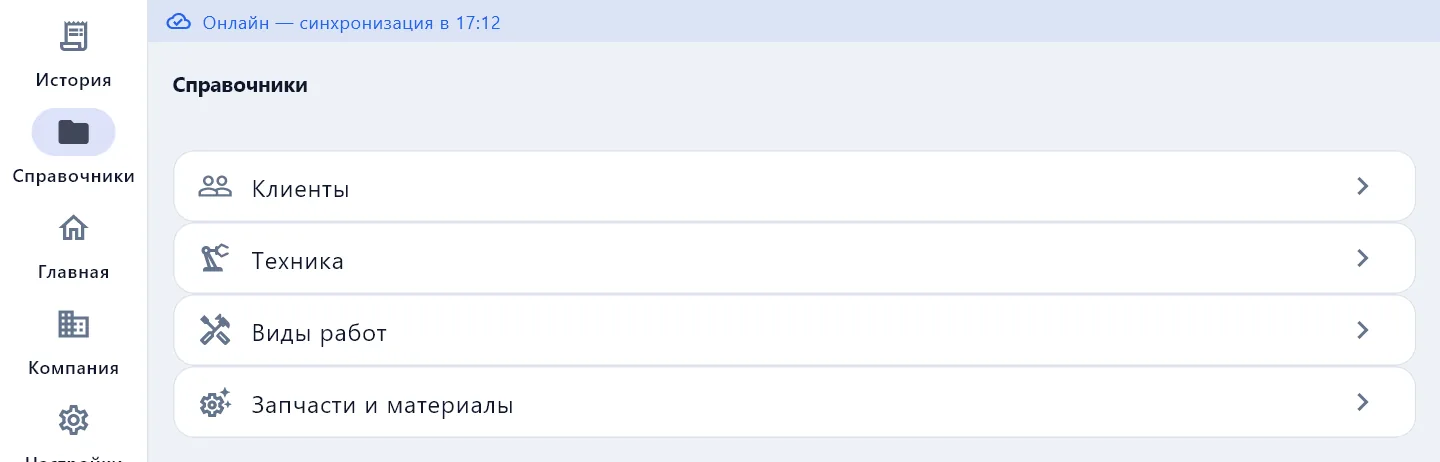
Each directory has search, sorting by alphabet or date, and import and export buttons. Records can also be added straight from a document — with the Create in directory button. Work and parts from an estimate land in the directory by themselves, with the latest price, when the PDF is built.
Directories are shared across the company: what one mechanic adds appears for everyone after sync.
Customer and tax number check
The customer card holds the tax number and a Check against the register button. DefAct finds the company in the state register and shows its state: active, being liquidated, ceased. Fill in the name and address fills the card from the register.
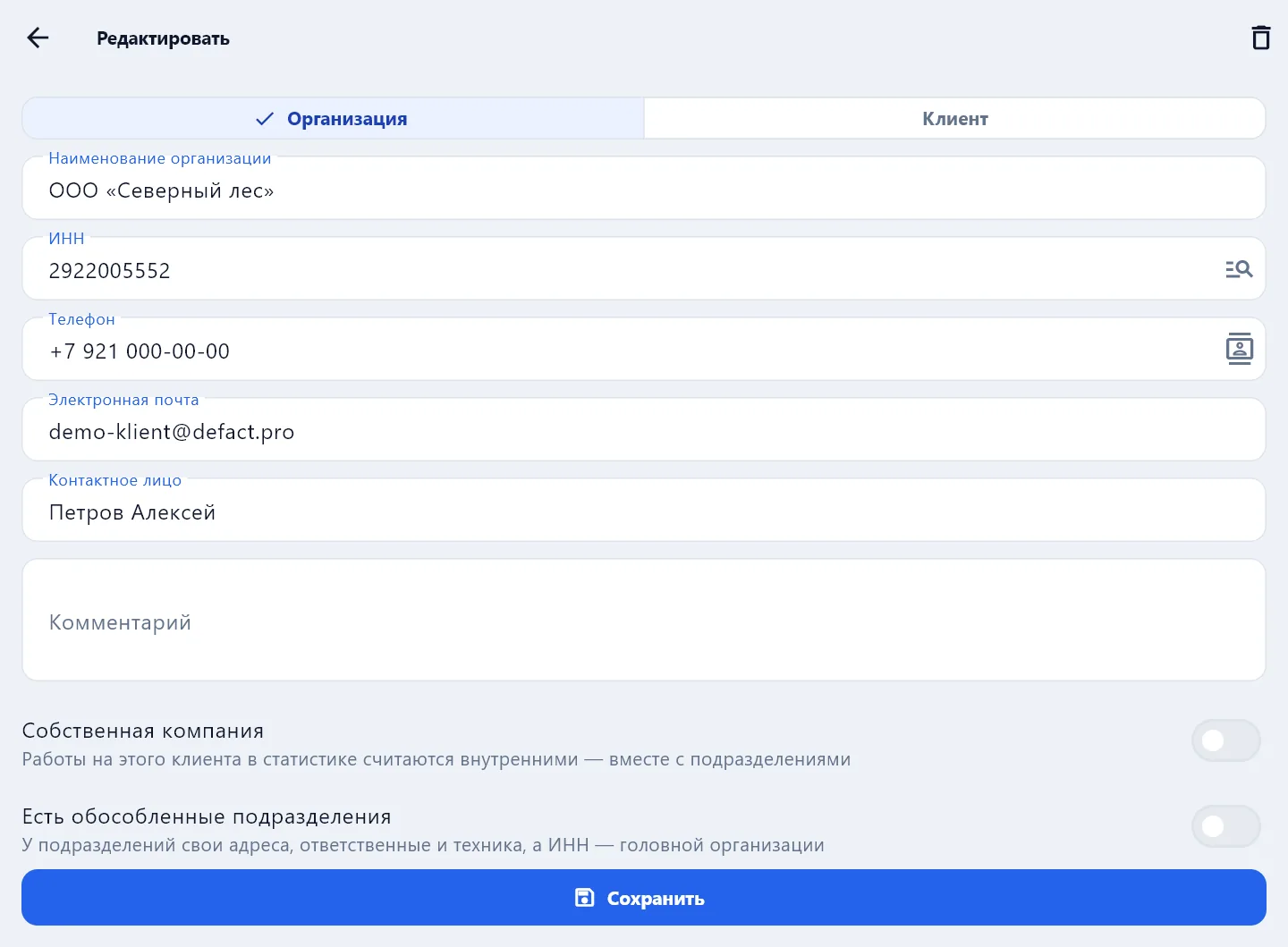
If the company is not active according to the register, the app warns you: confirm the details with the customer before making documents. The check works with a connection and after signing in to the company account.
Also on the customer card:
- responsible people — name, position, phone (can be taken from phone contacts) and email. By email the responsible person gets an invitation to the customer portal and will approve your documents;
- branches — with their own addresses, responsible people and equipment, while the tax number stays the head company's;
- own company — tick it if this is your own organisation: work for it counts as internal.
Excel
Settings → Import / Export:
- Download templates — tables with headers and examples;
- Import data — choose an
.xlsxor.csvfile, review the preview and decide what to do with duplicates: skip, update existing or create new; then Confirm import; - Export data — customers, equipment, typical defects, the document list, a defect report — as an
.xlsxfile; - Import log — what was uploaded and error reports.
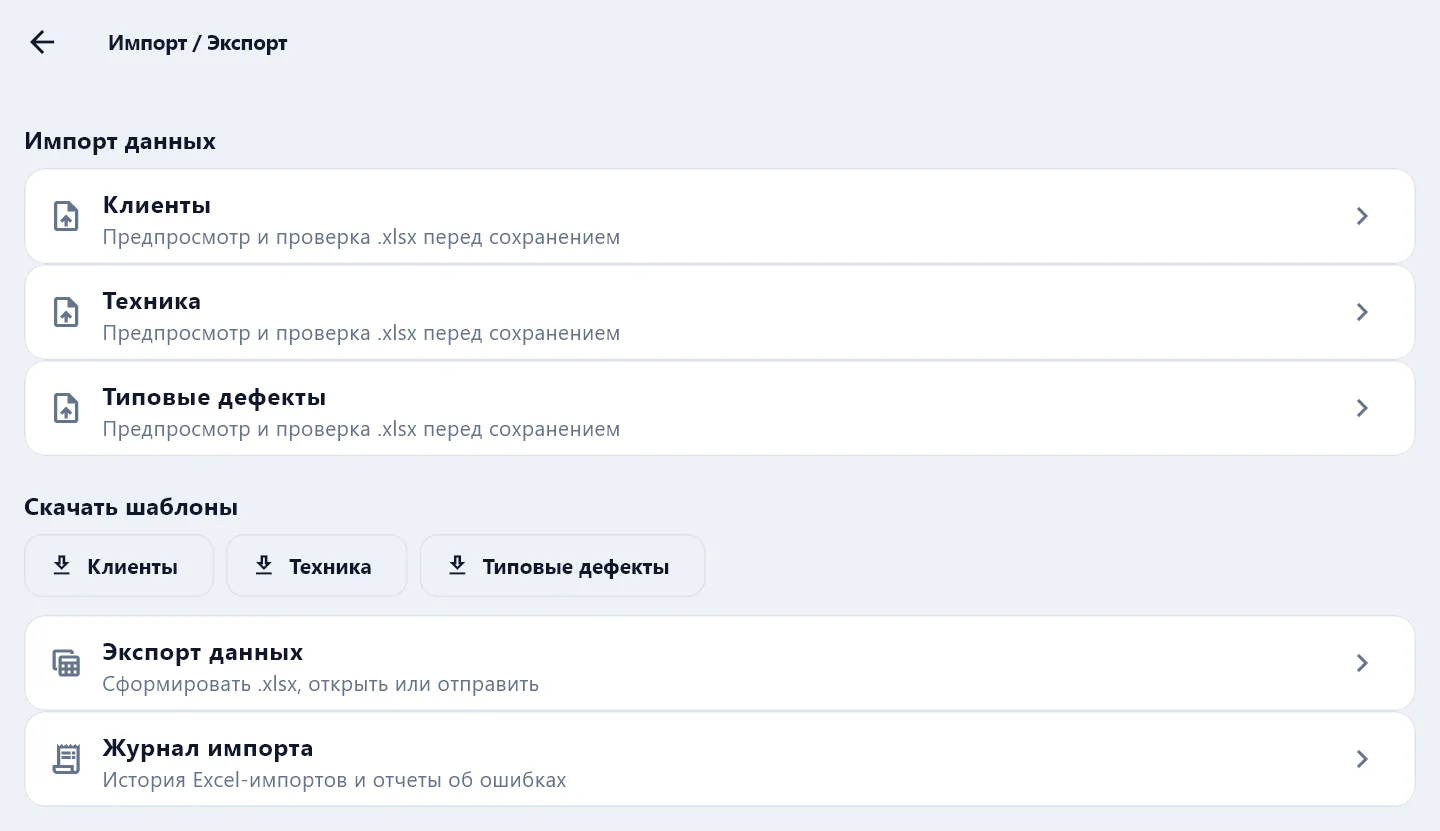
For the whole company the same is more convenient in the website cabinet — Directories in Excel.