Settings, tutorial and support
Tutorial, theme and language, backup, notifications on the computer, signing out, and how to report a problem.
What is in the settings
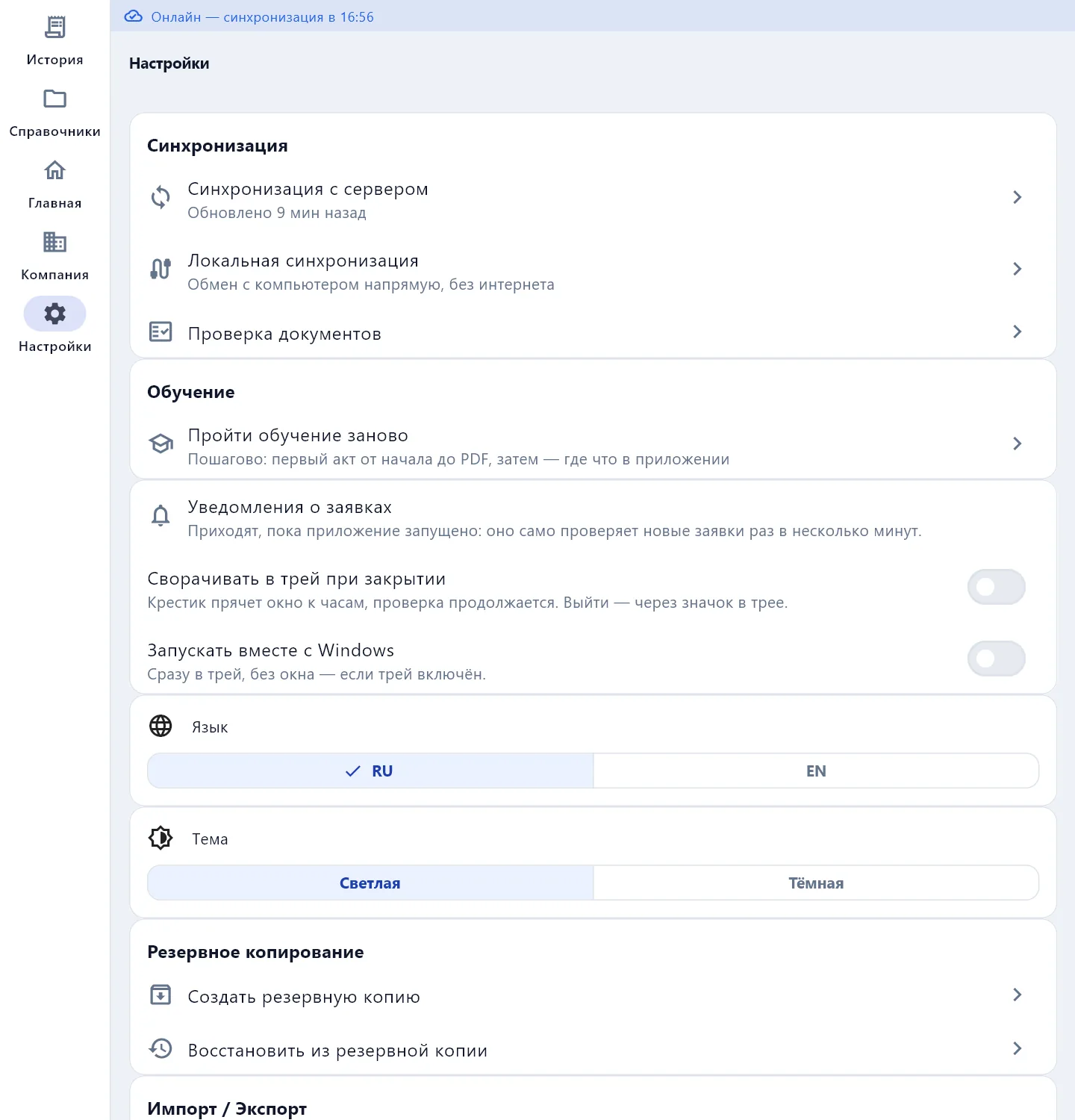
| Item | What for |
|---|---|
| Sync | State, mode, photo quality — Sync |
| Local sync | Exchange with another device without internet |
| Document checks | The internal review queue — for a controller and an admin |
| Tutorial | Take the tutorial again |
| Language and theme | Russian or English; light or dark theme |
| Backup | Create a data backup or restore from one |
| Import / Export | Excel templates, import, export and the log |
| Support | Report a problem |
| About | App version |
| Account | Sign out, sign out everywhere, delete the account |
Tutorial
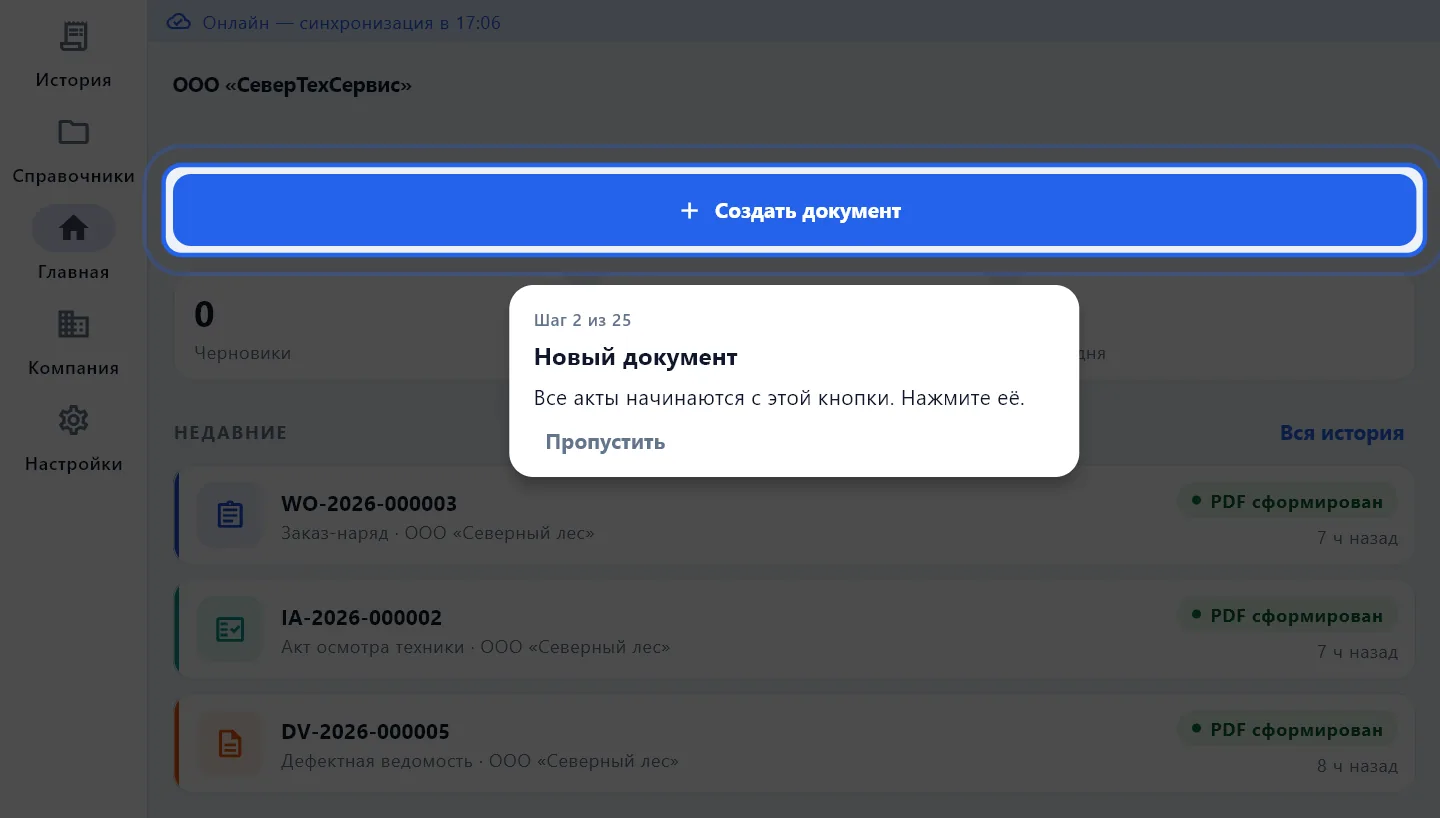
Take the tutorial again — step by step: the first act from start to PDF, then where things are in the app. You press the highlighted control yourself; the rest of the screen is dimmed.
On the computer: request notifications
The Windows version has three more settings:
- Request notifications — arrive while the app is running: it checks for new requests every few minutes by itself;
- Minimise to tray on close — the cross hides the window next to the clock and checking continues; to quit, use the tray icon;
- Start with Windows — straight into the tray, without a window.
Signing out
- Sign out — on this device. Data on the device stays; you will need to sign in again to sync.
- Sign out everywhere — every phone and computer on this account will ask to sign in again. Documents are not going anywhere. Useful if you lost a phone.
Report a problem
Settings → Support → Report a problem. Describe what happened or what to improve, and leave Attach technical details ticked — version, device and the latest app errors, without customer data. The message goes to info@defact.pro by email or through a messenger.