The service company cabinet
The workplace of the manager, the dispatcher and the controller. Here you see what awaits a decision, from here you assign jobs to mechanics and run the company.
Signing in
Open defact.pro/account and sign in with the email and password — the same as in the app. Signing in with Yandex or VK works too. Forgot the password — the Forgot password link on the sign-in form sends a reset email.
The cabinet opens in any browser on a computer, tablet or phone. On a phone the menu hides behind a button in the top left corner.
Menu
On the left are the cabinet sections, grouped by meaning:
- Work: Overview, Requests, Dispatch, Review, Control.
- People: Customers, Team.
- Company: Company, Subscription, Company data, 1C integration, Devices, App.
At the bottom of the menu — your name (leads to the profile), the theme switch, the tutorial button and Sign out. The button at the top of the menu collapses it to icons to free space; section names appear on hover.
Which sections are visible depends on the role: a technician sees less than an admin.
Overview
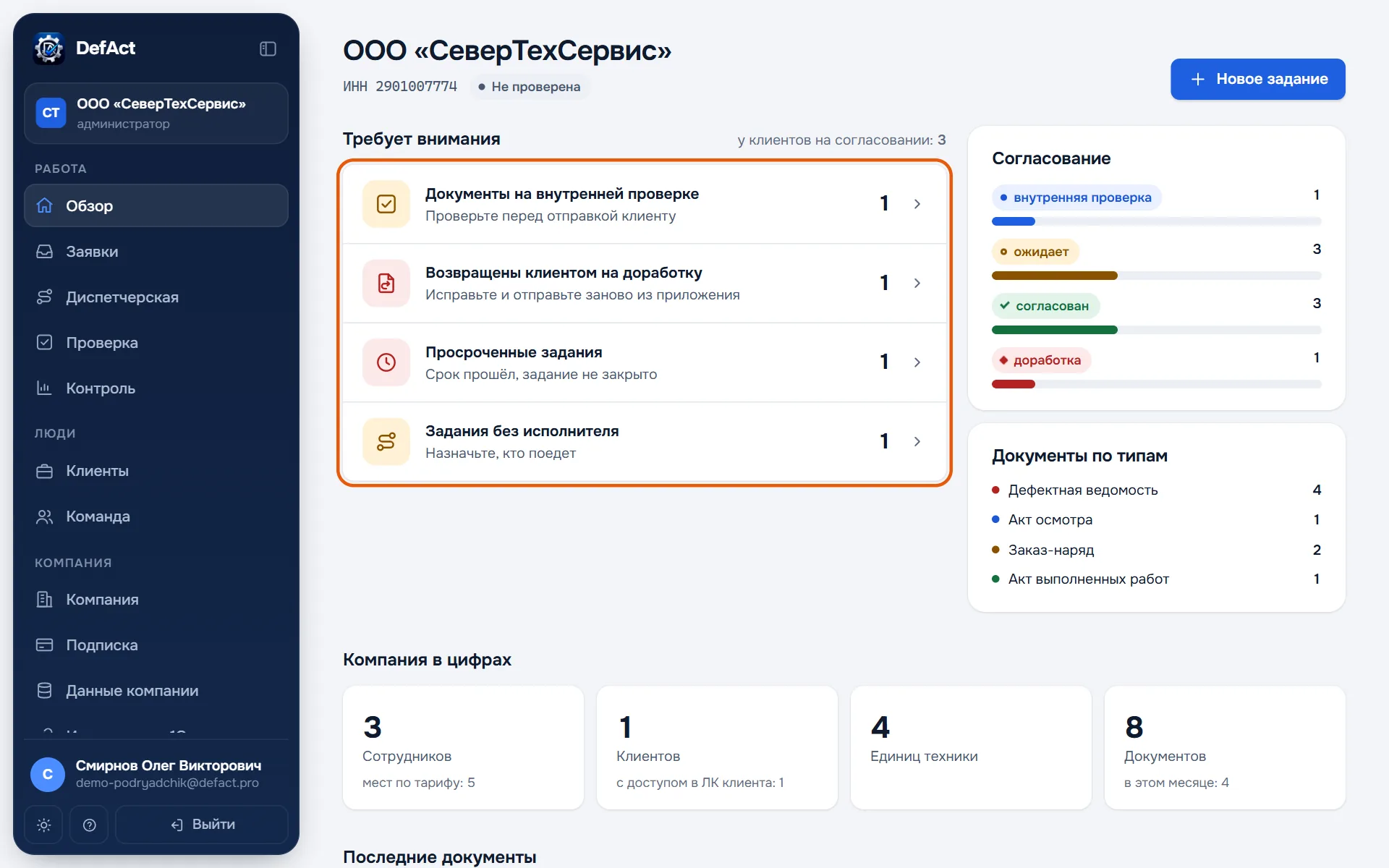
Needs attention — what waits for a decision right now. Each line shows how many are waiting and leads straight to the task:
- requests without an answer — the customer waits for a price and a date;
- documents in internal review;
- documents returned by the customer for rework;
- overdue jobs and jobs without a technician;
- requests to join the company.
If everything is handled, the block says so: "Everything handled".
Approval — how many documents are in internal review, awaiting the customer's decision, approved and returned for rework. Documents by type — how many reports, acts and orders were made. The company in figures — employees and seats used on the plan, customers, equipment, documents this month. Below — the latest documents with a link to the PDF.
The New job button in the top right corner leads to dispatch.
Several companies
If you belong to several companies — two organisations, for example — a switcher appears at the top of the menu. Every section shows the selected company's data. Adding another company or joining someone else's is in the Company section.
If your account is also an employee of a customer at another contractor, a link "Go to the customer portal" appears at the bottom of the menu.
Tutorial
On the first sign-in the cabinet shows the essentials itself: it highlights sections and briefly says what is where. Take the tutorial again with the question-mark button at the bottom of the menu.