Quick start for a service company
From signing up to the first document at the customer — seven steps. For the first 30 days every feature is free.
1. Sign up
Open defact.pro/register, enter your work email and tick the consents. A temporary password arrives by email — sign in with it at the cabinet, and DefAct immediately asks you to set your own password.
You can also sign up from the app: there is one account, and it works both on the site and on the phone.
2. Create the company
In the cabinet press Create company and enter the tax number (INN): 10 digits for an organisation, 12 for a sole trader. The name and the legal address are filled in from the state register automatically.
If your company already works in DefAct, the system says so and offers to send a request to join — the company admin approves it and you get access. A second copy of the same company cannot be created: documents, numbers and customers must live in one place.
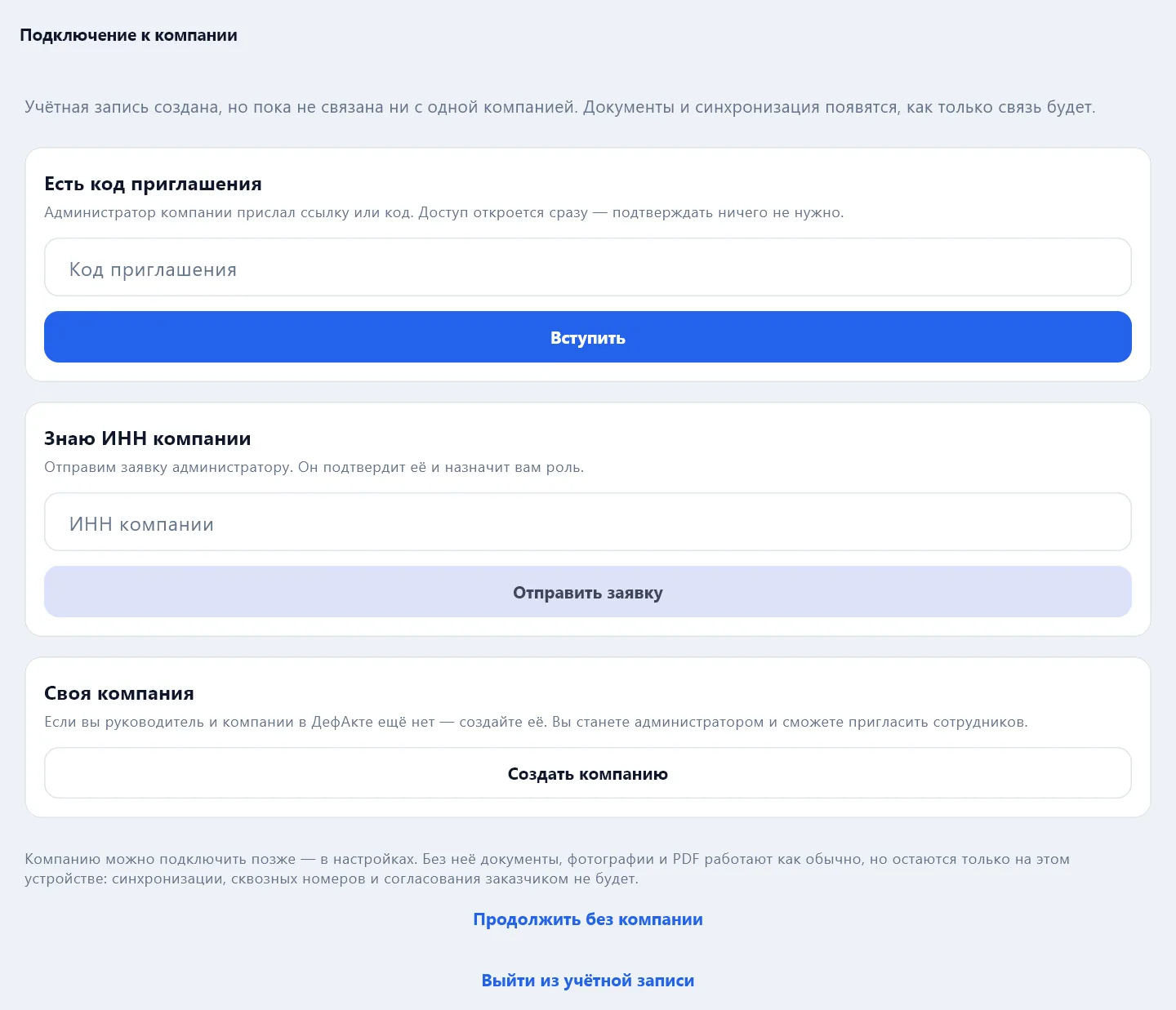
In the app it is the same: right after the first sign-in a screen opens — Connect to a company — with an invitation code from the admin, a request by tax number, or your own company. You can also Continue without a company, in which case documents stay on this device only.
3. Fill in the details and the logo
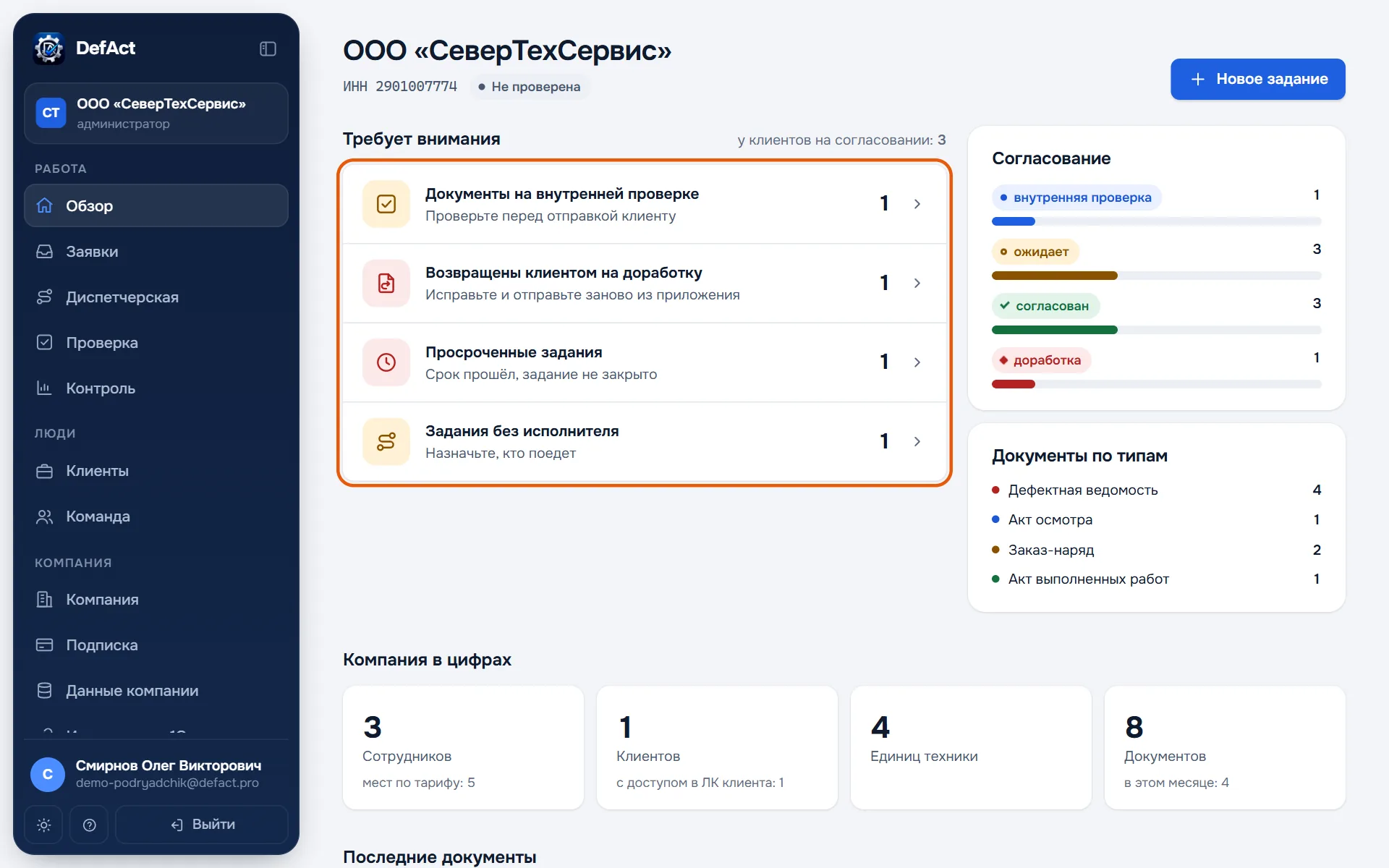
The Company section: address, phone, email, website, colours and the logo for document headers. The app picks the details up on every device — no need to enter them on each phone. More in Company and details.
4. Invite employees
The Team section → Invite employee: email and role. For mechanics the Technician role, for the dispatcher and the controller — Admin or Controller. For an employee without email you can create a login and password yourself. More in Team and roles.
5. Install the app
Mechanics install DefAct on the phone or the computer — from defact.pro/download or from RuStore — and sign in with the same email and password. More in Installation and sign-in.
6. Add customers
Customers, their equipment and the responsible people are entered in the app's directories or uploaded as an Excel table in the Company data section. If a responsible person has an email, after sync they get an invitation to the customer portal, where they will approve your documents. More in Customers and customer access.
7. Make the first document
The app has a tutorial: in 3–4 minutes it takes you from an empty screen to a finished PDF on a training act. Then make a real defect report — Defect report — and send it to the customer for approval.
The plan depends on the number of employees; the first 30 days are free with every feature. Prices are on the Pricing page, payment is in the Subscription section of the cabinet.