Approving the contractor's documents
The contractor sends a defect report with an estimate or a work order — you look at the defects, photos and amounts and press Approve or Return for rework.
What awaits a decision
On the Documents page, at the top — Awaiting your decision: cards of documents the contractor sent for approval, with the document type, number, equipment, date and the estimate amount. Press Review.
An email arrives when a new document is sent for approval.
The document
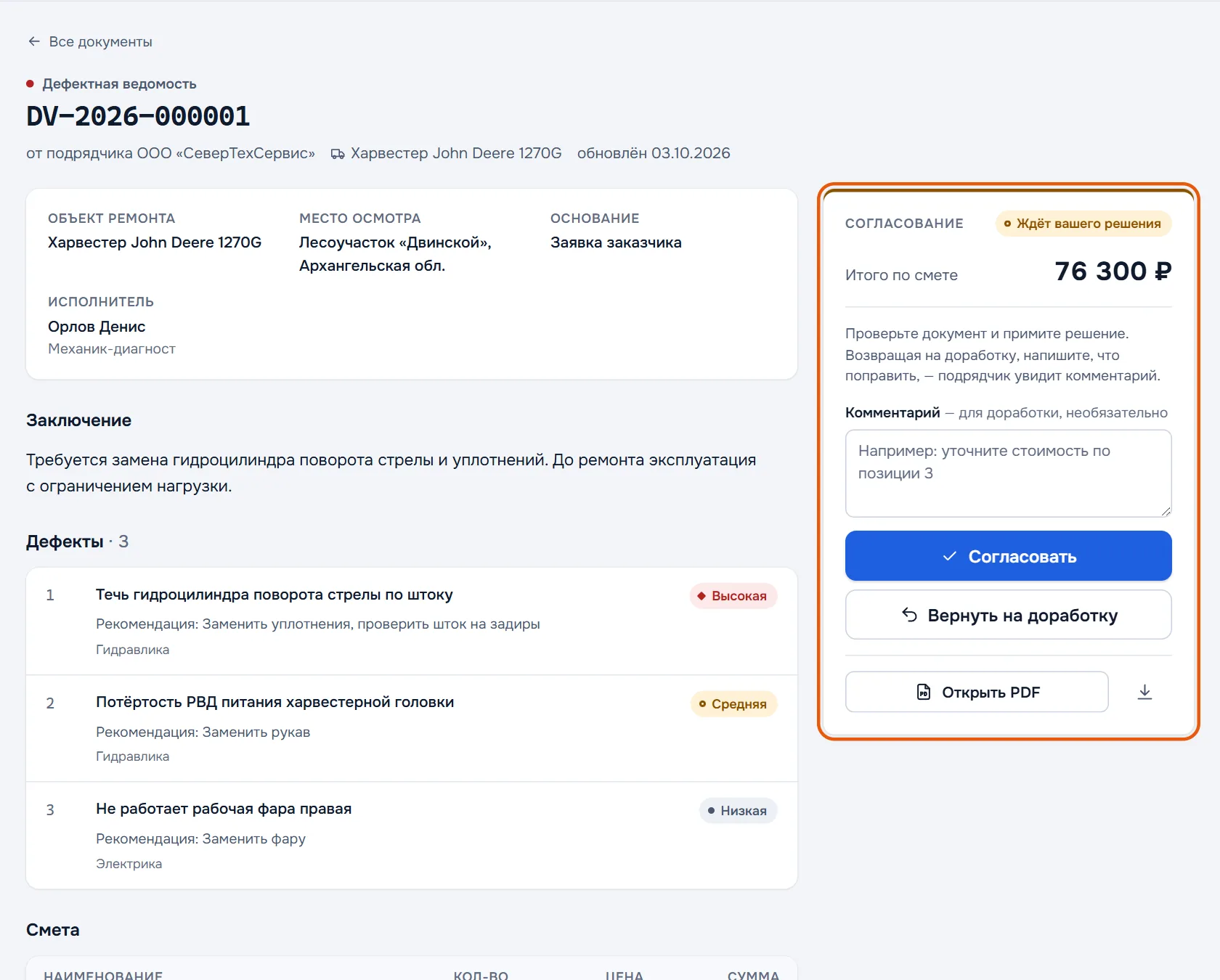
On the document page:
- details — the object of repair, the inspection location, the basis, which mechanic made it;
- conclusion — what to do with the equipment;
- defects — description, severity (high, medium, low), recommendation, group;
- estimate — work in hours and parts in pieces, prices, amounts and the total;
- photos and files — tap a photo to enlarge it; the mechanic's marks on the photo are visible;
- document history — when it was created, sent, approved or returned, and by whom.
The whole document as it will be signed — the Open PDF button; the arrow next to it downloads the file.
Making a decision
On the right is the Approval block with the estimate total:
- Approve — the document is approved and the contractor sees it immediately.
- Return for rework — write in the Comment field what to fix, for example "clarify the price for item 3". The contractor sees the comment, fixes the document and sends it again — it appears in Awaiting your decision once more.
A decision is possible while the document awaits approval. Your name and position from the profile go into the document history.
All documents
Below is the All documents table: number, type, equipment, approval status and update date. Press a row to open the document.
- Filters: All, Awaiting decision, Approved, Returned for rework, and the document type.
- Search by number, for example
DV-2026-000014.
| Status | What it means |
|---|---|
| Awaiting decision | The contractor sent the document, the decision is yours |
| Approved | You approved the document |
| Returned for rework | You returned the document, the contractor is fixing it |
Who sees which documents depends on the role: a customer admin sees all the organisation's documents, a customer technician only those sent to them. More in Customer employees.