Profile, password and deleting an account
Your name, position and phone as they appear in documents, changing the password, and deleting the account.
Profile
Open the profile — press your name at the bottom of the menu. The name, position and phone from the profile appear in documents, in the approval history and in employee lists — in all your companies and in the customer portal.
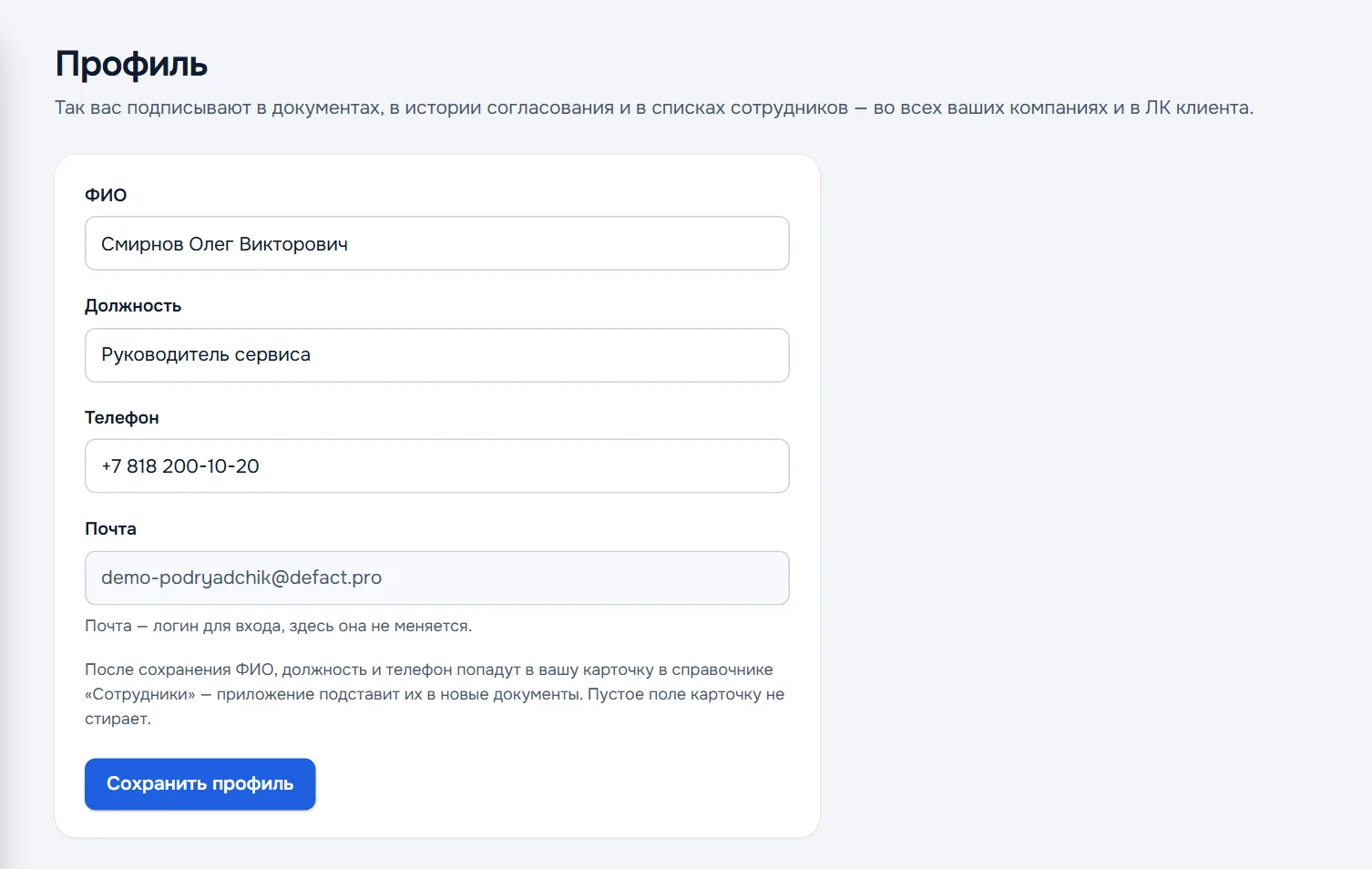
After saving, the name, position and phone go into your record in the Employees directory — the app fills them into new documents. An empty field does not erase the record.
The email is the sign-in login; it cannot be changed in the profile.
Changing the password
The Security section → Change password: a new password of at least 8 characters twice → Save password.
Forgot the password — on the sign-in page press Forgot password? and enter the email: a letter arrives with a link for a new password. A company admin can also reset an employee's password — in the Team section.
Deleting the account
The Security section → Delete the account…. Before confirming, DefAct shows what this affects:
- companies where you are the only member are deleted together with the account — with documents, signatures and directories;
- from other companies you simply leave — their documents stay with the company.
Access closes immediately — both on the site and in the app. The data on the server is destroyed after 7 days; until then the deletion can be cancelled by the link in the email. Need to export documents before deleting — write to info@defact.pro.