Company and details
Details, logo and colours for document headers, document review before sending, and actions on the company itself.
Details
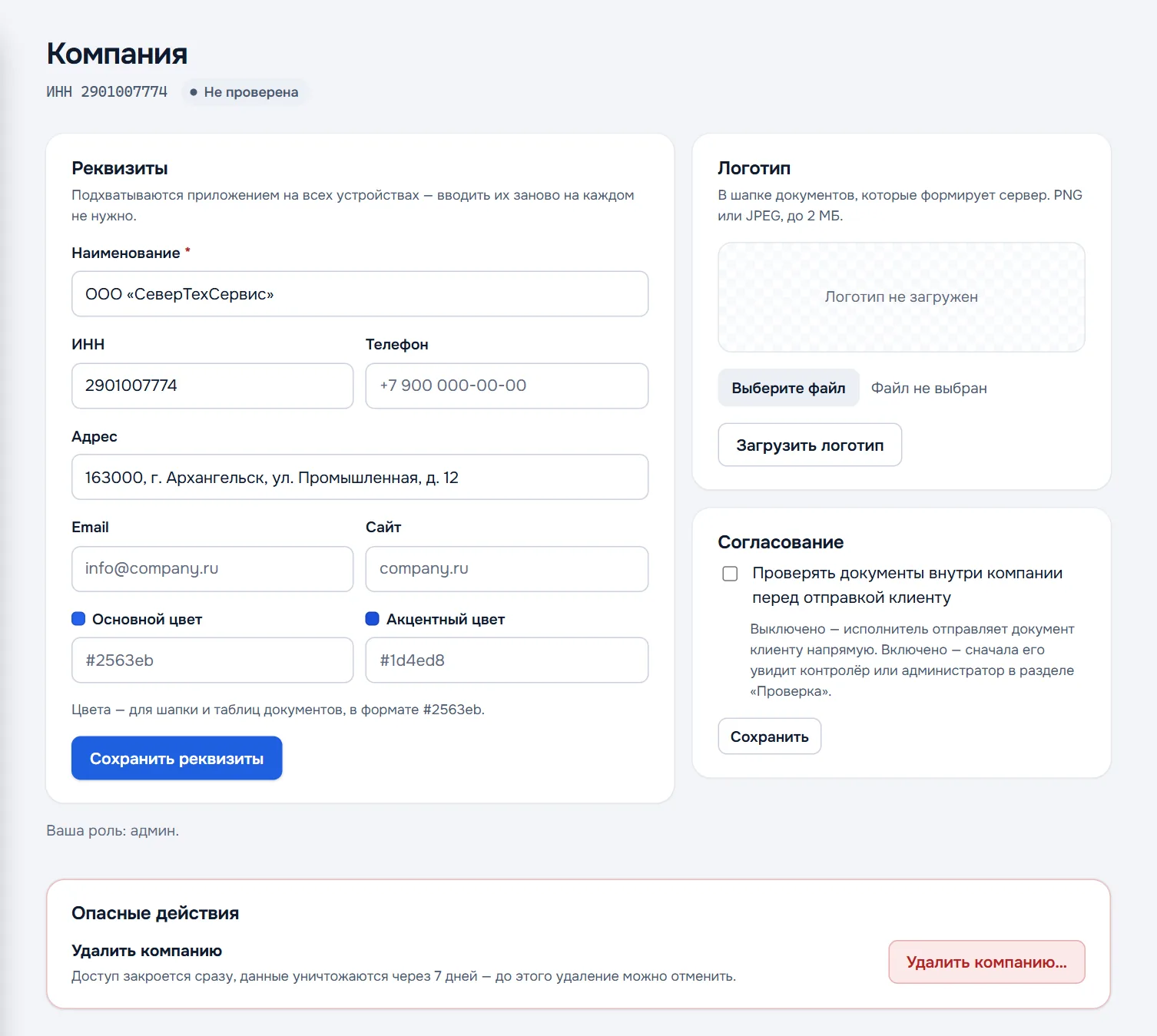
Name, tax number, phone, address, email and website go into the header of every document. The app picks them up on all devices — no need to fill them in on each phone. After editing press Save details.
Colours — primary and accent, in #2563eb format — paint the header and tables of documents in your company colours.
Next to the tax number is the register check mark: Active, Not active in the register, Tax number not found in the register, or Not checked.
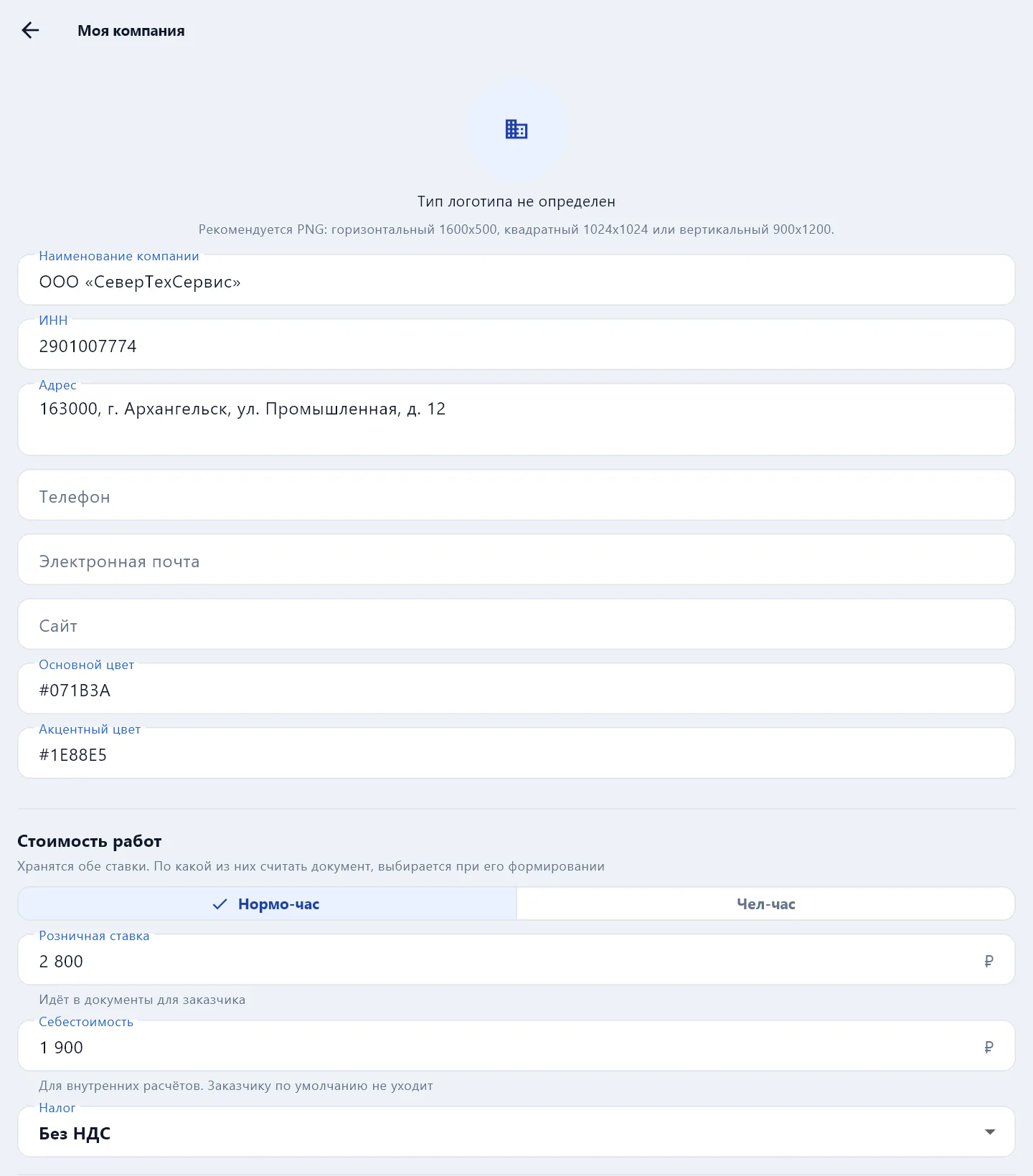
The same details and logo, plus the hourly rates and the tax for estimates, are in the Company tab of the app.
Logo
PNG or JPEG up to 2 MB. The logo goes into the header of documents the server builds. Choose a file and press Upload logo; it can be removed in the same place.
Approval
The Check documents inside the company before sending to the customer checkbox. Off — the mechanic sends the document to the customer directly. On — the document first goes to the Review section and a controller or admin looks at it. More in Internal review and control.
Several companies
One account can belong to several companies. To add another, press Create company in the Company section and enter the tax number — the name and address are filled from the register. If a company with that tax number already exists in DefAct, instead of creating one you send a request to join: the admin of that company confirms it.
When there is more than one company, a switcher appears at the top of the menu — every cabinet section shows the selected company.
Leaving or deleting a company
- Leave the company — for employees without admin rights. The documents stay with the company, and the working data on your devices is deleted.
- Delete the company — the Dangerous actions block, available to an admin and the owner. Before confirming, DefAct shows how many documents, photos, customers, employees and devices will be deleted. Access closes immediately, and the data is destroyed after 7 days — until then the deletion can be cancelled with the Cancel deletion button.