Installing the app and signing in
DefAct installs on an Android phone and a Windows computer. Sign in with the same email and password as in the website cabinet.
Where to download
- Android — RuStore. Find DefAct in RuStore or open the app page. Updates arrive from the store by themselves. For a phone this is the easiest way.
- Android — APK file and Windows — installer from the defact.pro/download page. The file checksum and previous versions are there too.
- iPhone and iPad — for now only by separate instructions: the app is not in the App Store yet.
If the system warns you
Files from the site are not yet signed with a certificate, so the first install raises a warning. That is not a sign of a problem with the file — it treats every non-store app this way.
- Android: allow installation from this source (browser or file manager) when the phone asks.
- Windows: in the SmartScreen window press More info → Run anyway.
From RuStore the app installs without warnings.
Signing in
On first launch the app asks you to sign in:
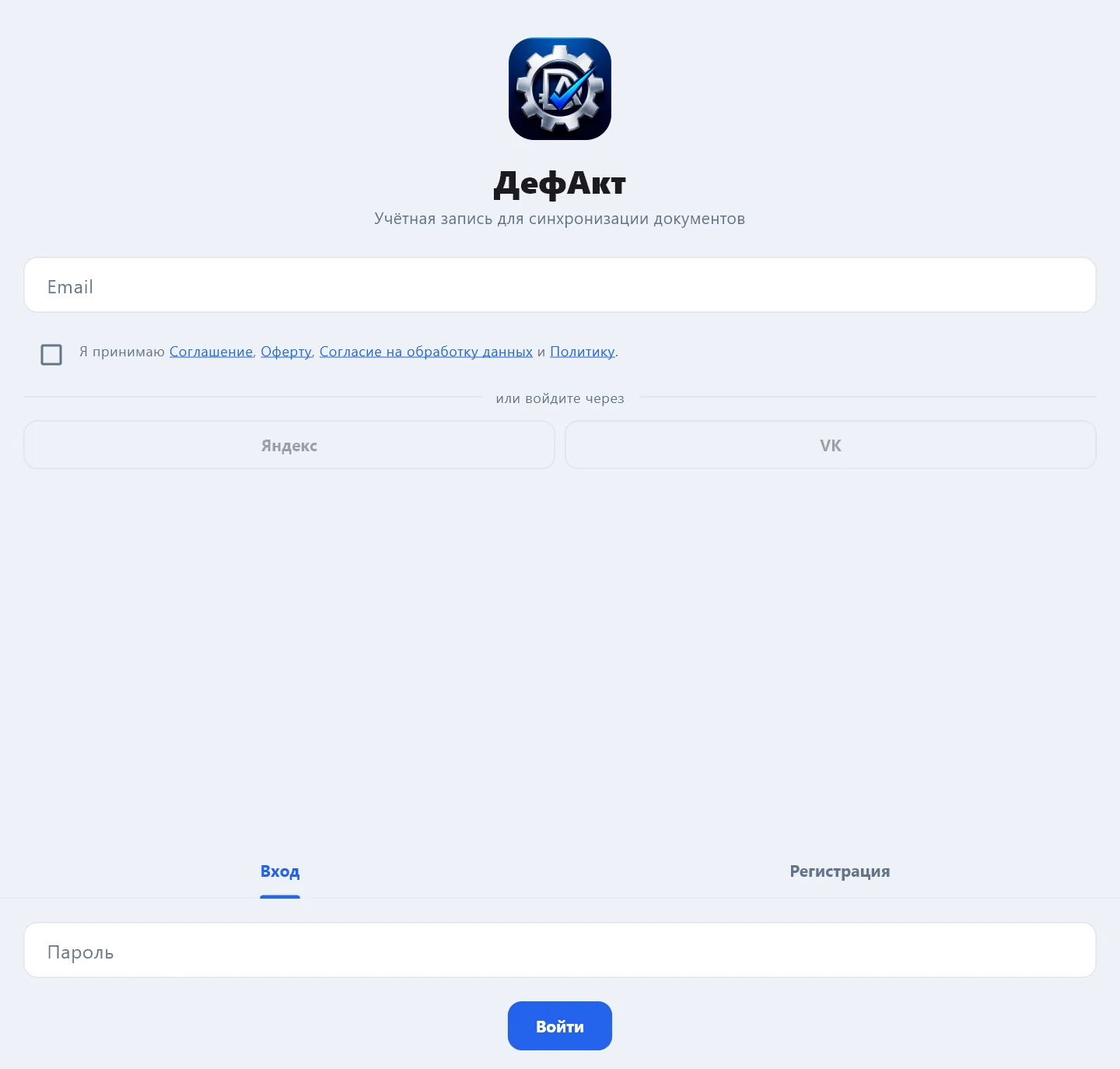
- email and password on the Sign in tab — the same as for the website cabinet;
- or the Yandex / VK buttons — without a separate password. The buttons become active once you tick agreement with the documents under the email field.
No account — the Sign up tab: a temporary password arrives by email and must be changed right after signing in.
If you were invited to a company, accept the invitation from the link in the email — the company appears in the app after signing in. The app also works without a company, but only on this device: documents do not go to the server, and the PDF carries a free-mode mark.
How many devices
An employee has one phone or tablet and one computer working at the same time. Signing in on a new phone disconnects that employee's previous phone, and on a computer the previous computer. The company device list is in the cabinet, section Devices.
Updates
From RuStore updates arrive by themselves. If you installed a file, download the new version from defact.pro/download and install it over the old one: documents and settings are kept. What changed in each version is on the News page.