Employees, contractors and the customer's details
Which of your colleagues sees and approves documents, which contractors are connected to your organisation, and which details appear in documents.
Roles
| Role | What it can do |
|---|---|
| Owner | Everything an admin can, and appoints admins. Goes to the first person the contractor invited |
| Admin | Sees all the organisation's documents, approves, invites and disables employees |
| Technician | Sees and approves documents the contractor sent to them for approval |
Employees and roles are shared across all your contractors: a role change and disabling apply everywhere at once.
Inviting a colleague
The Employees section → the Invite employee form: email and role → Create invitation. The colleague receives an email with a link; the link also appears on the page, so you can forward it yourself. An admin or the owner invites.
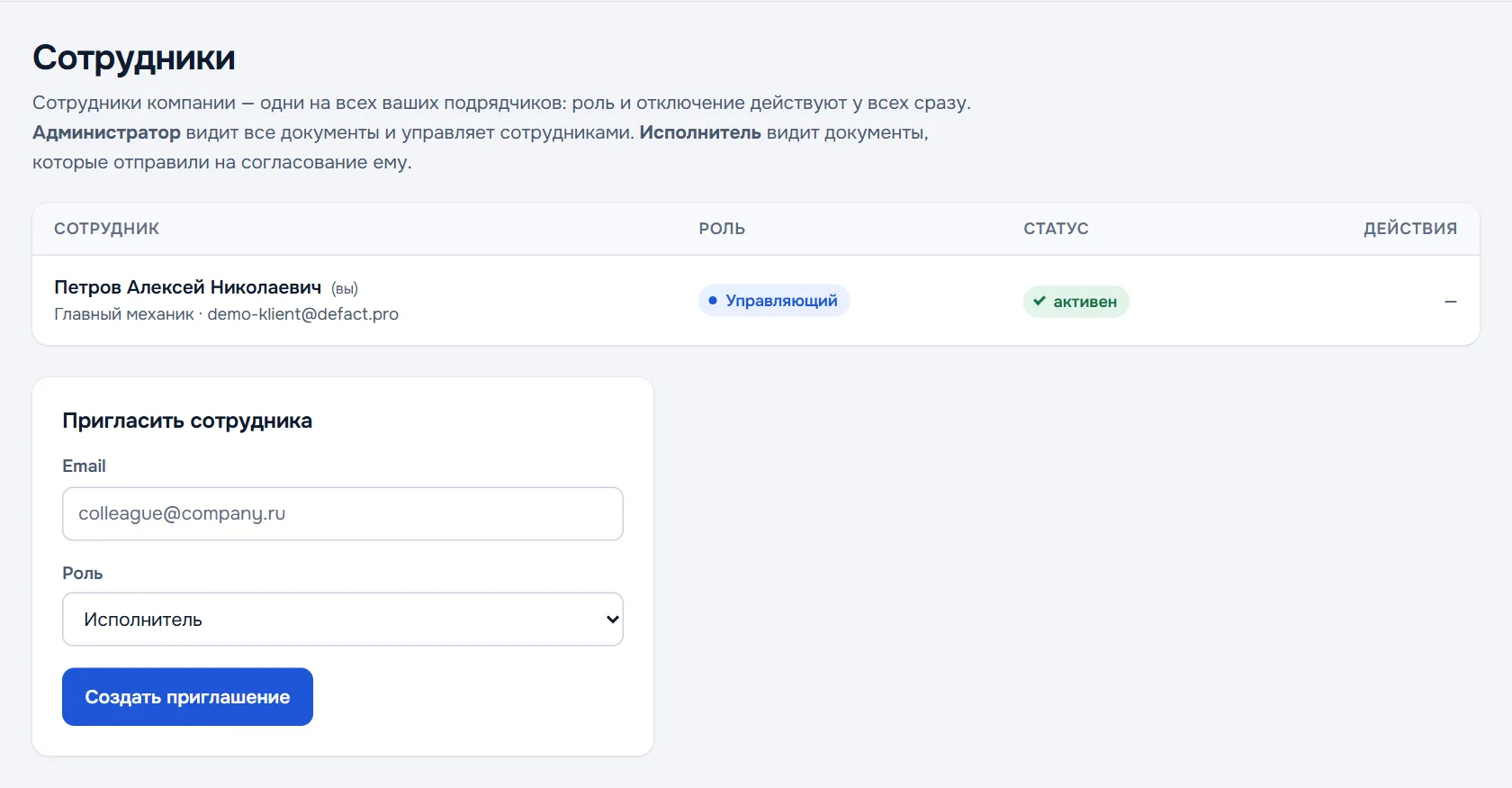
If the organisation has branches, the invitation can set access: the whole organisation or one branch. A branch employee sees only that branch's documents.
To change a role or disable an employee, use their row. The last owner and the last admin cannot be demoted — appoint someone else first.
Contractors
The Contractors section — service companies that connected your organisation in DefAct: name, tax number, contacts and since when. Documents sent to you for approval are visible to your employees according to their roles.
An admin can disconnect a contractor — they stop sending documents and requests to your portal. Connecting them back is done in the same place.
Company
The Company section — the details the contractor puts into your documents. The contractor sets the name and tax number on the customer card: that is how they find your organisation. An admin can correct the address, phone, email, contact person and position — the contractor sees the changes after sync. The Check against the state register button compares the tax number with the register.
Profile
The Profile section — your name, position and phone. They sign your decisions: the document history shows who approved or returned a document and when.