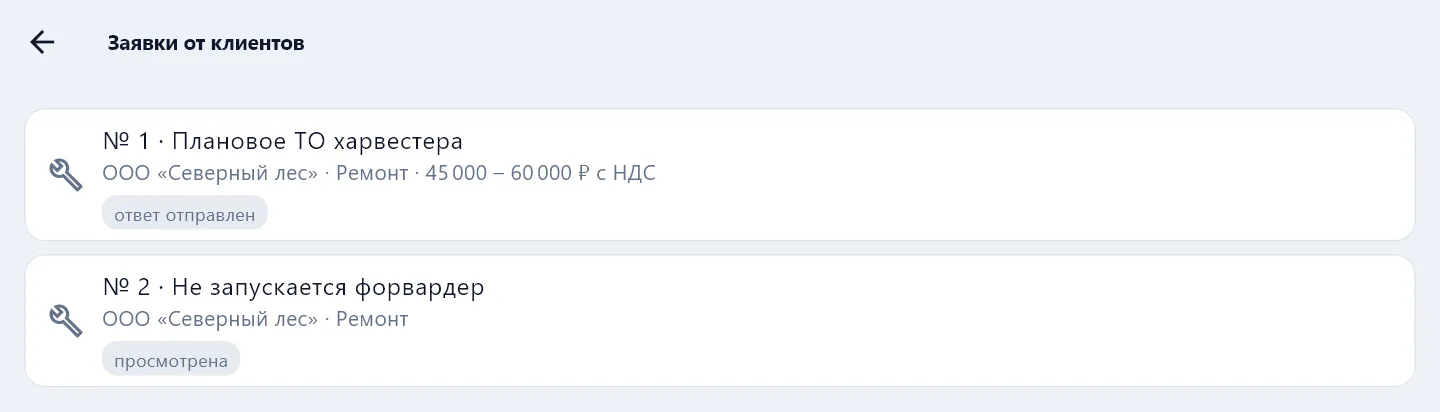
Requests from customers
The customer describes a breakdown in their portal, you answer with a preliminary price and a date. If they pick you, assign the job to a mechanic in one click.
Where requests come from
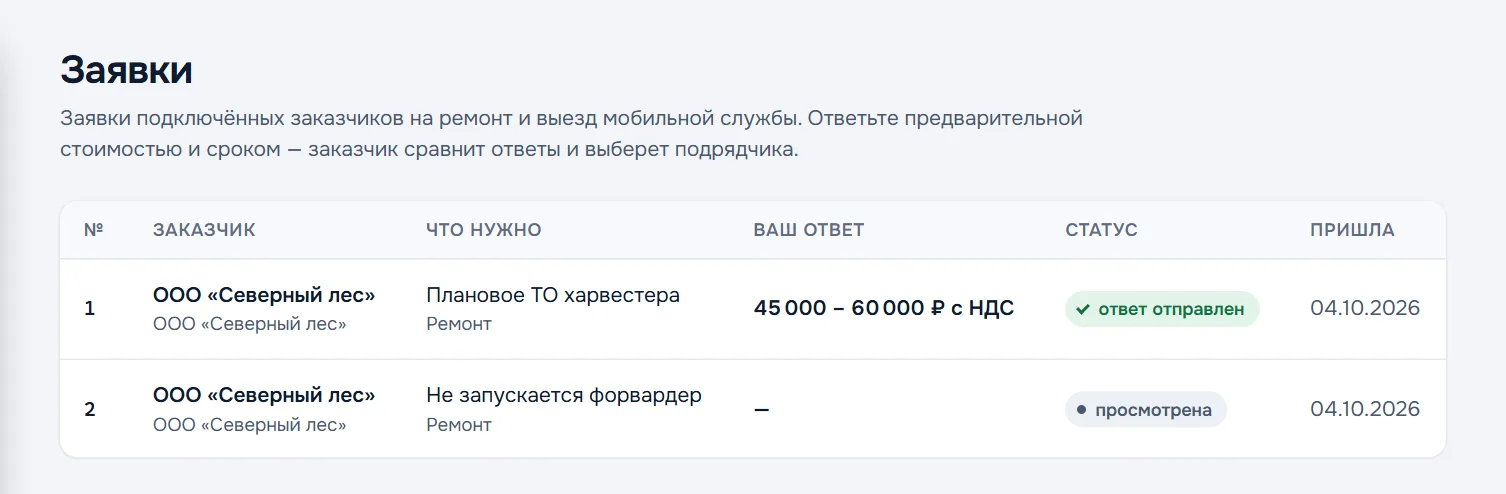
Requests are sent by customers connected to your company — from their portal. A request is of two kinds: repair or mobile service visit. A customer can send one request to several contractors at once; contractors do not see who else received it.
An email about a new request goes to the customer manager, assigned on the customer card (Customers section). If no manager is assigned, every admin of the company receives it. Unanswered requests also appear on the Overview in the Needs attention block.
How to answer
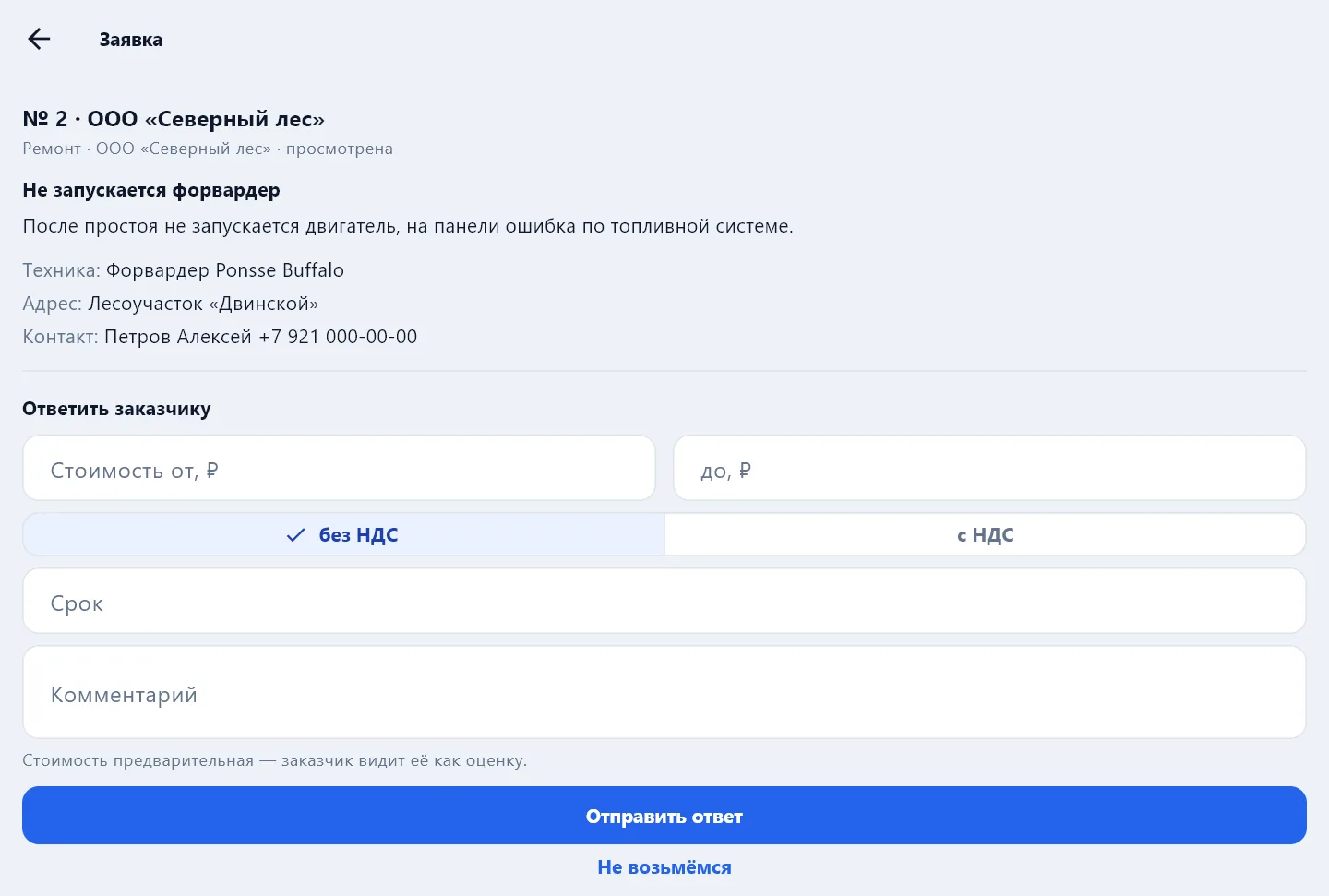
Open the request. On the left — what happened, which equipment, the address, the contact on site and photos if the customer attached any. On the right — the answer form:
- Price from and to, in roubles.
- VAT — with or without.
- Date — for example "3 business days".
- Comment — what the price includes and what to clarify on inspection; optional.
- Press Send answer.
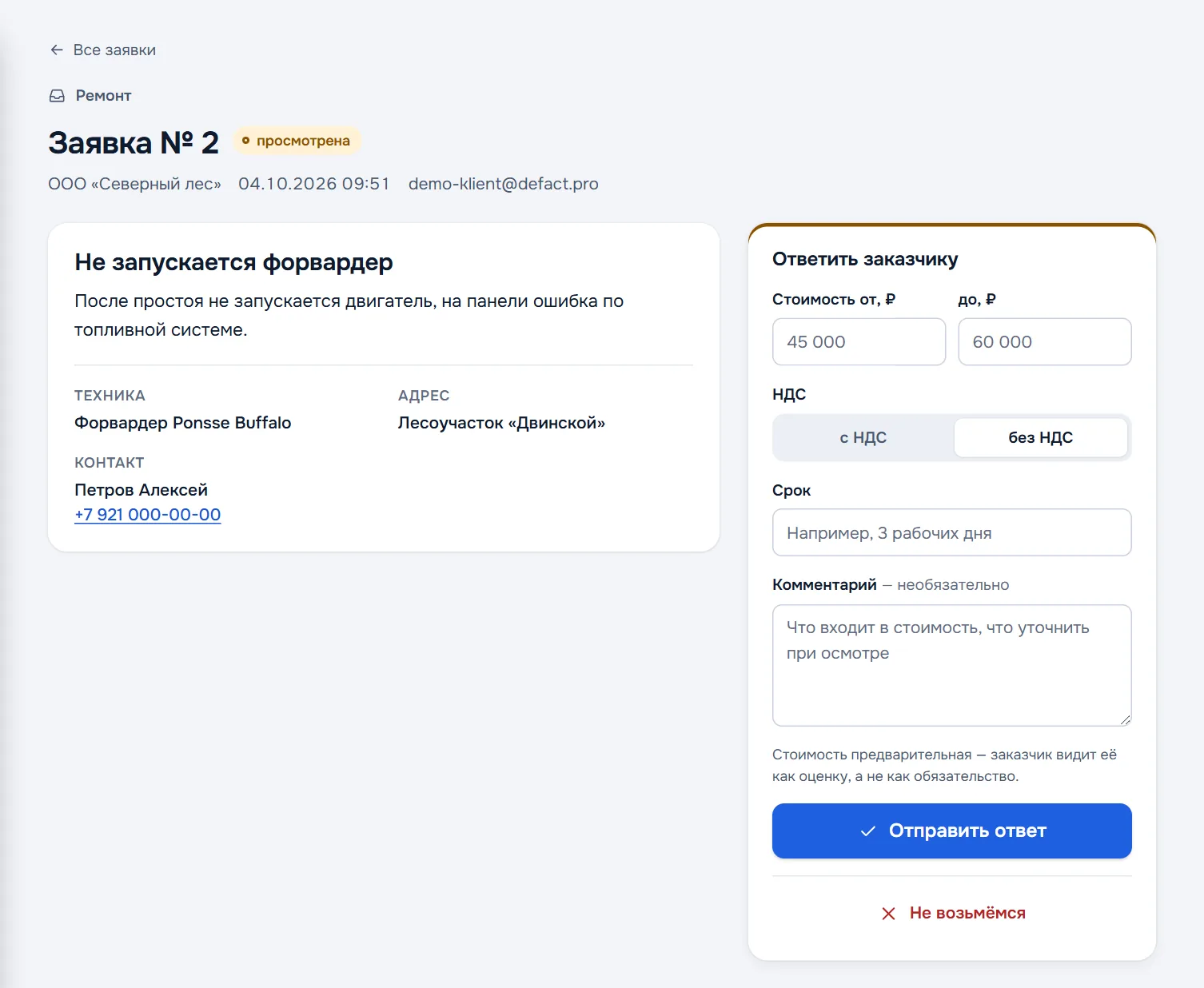
The price is preliminary: the customer sees it as an estimate, not a commitment. The exact amount comes with the estimate in the defect report after the inspection.
The answer can be changed until the customer has picked a contractor. If the request does not suit you, press We will not take it — the customer sees the refusal and stops waiting.
Statuses
| Status | What it means |
|---|---|
| new | The request arrived and has not been opened |
| viewed | The request was opened, no answer yet |
| answer sent | The customer sees your price and date |
| declined | You pressed We will not take it |
| accepted by the customer | The customer picked you |
| closed by the customer | The customer chose another contractor or cancelled |
The customer picked you
A Assign a job button appears in the request: a new job opens in dispatch, with the address, the contact and the description carried over from the request. Choose the mechanic and the deadline — see Dispatch.
Requests in the app
Requests can also be answered in the app: the Company tab → Customer requests, with the number of new ones next to it. When the customer accepts your offer, Start a work order appears in the request — the address, the date and the description carry over into the document.