The app — main screen and tabs
The DefAct app on a phone and on a computer is laid out the same way — five tabs, and every document starts from one button.
Tabs
| Tab | What is in it |
|---|---|
| History | All documents — search, filters, reopening PDFs |
| Directories | Customers, equipment, work types, parts and materials |
| Home | The Create document button, recent documents and a short summary |
| Company | Details, rates, jobs from the manager and requests from customers |
| Settings | Sync, tutorial, theme, backup, Excel, support |
On a phone the tabs sit at the bottom, Home in the middle; in a wide computer window they are on the left. Above the screen is a connection line, for example "Online — synced at 08:57".
Main screen
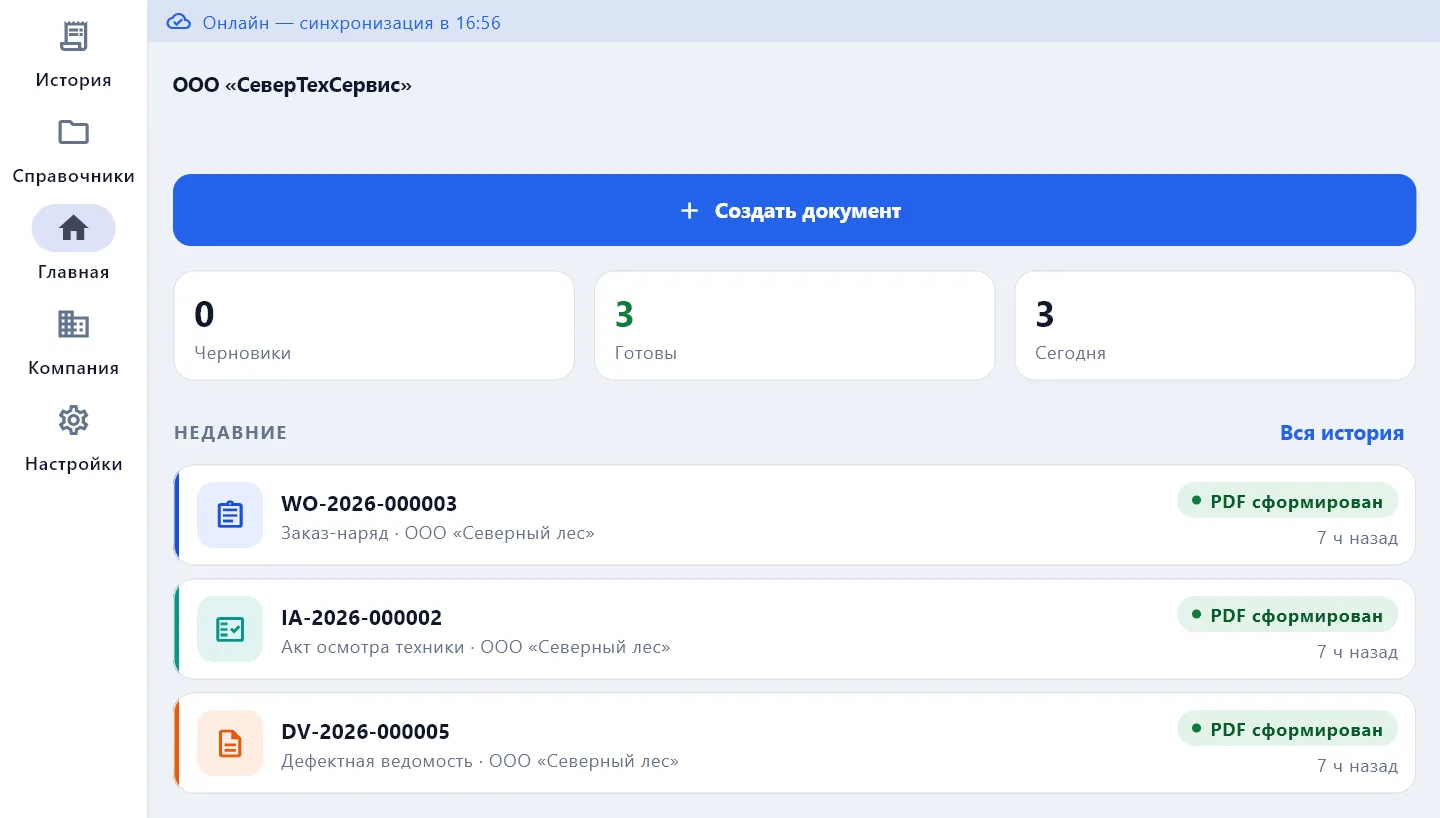
- Create document — every act starts from this button.
- Summary — how many drafts you have, how many documents are ready and how many were made today.
- Recent — the latest documents; "All history" opens the History tab.
- Awaiting sync: N — this many documents have not gone to the server yet. That is normal without a connection: the app sends them by itself once the network is back.
Working offline
The whole document — sections, photos, signatures and the PDF — is made without internet. Everything is saved on the device immediately, there is no Save button to look for. Once there is a network, the documents go to the server and become visible in the manager's and the customer's cabinets. More in Sync and working offline.
Tutorial
On first launch the app offers a tutorial: in 3–4 minutes it goes from an empty screen to a finished PDF on a training defect report. You press the highlighted control yourself, and in fields you can press "Insert example". The training act never goes to the server or the customer and is deleted at the end. To take the tutorial again — Settings → Take the tutorial again.