Sync and working offline
The app works without internet. When a connection appears, documents go to the server by themselves — and if there is no internet at all, devices exchange data directly, over Wi-Fi or a cable.
How it works
Everything you do in the app is saved on the device immediately. When there is a connection, the app sends new and changed documents, photos and directories to the server, and receives what changed elsewhere: the company directories, details, the customer's decisions, jobs.
The document number is issued by the server — on the document's first sync. Before that the app shows a temporary number.
Sync state
Settings → Sync: the last sync, how much was sent and received, how many files went out. The Sync now button starts the exchange immediately. The main screen shows how many documents are still waiting to be sent.
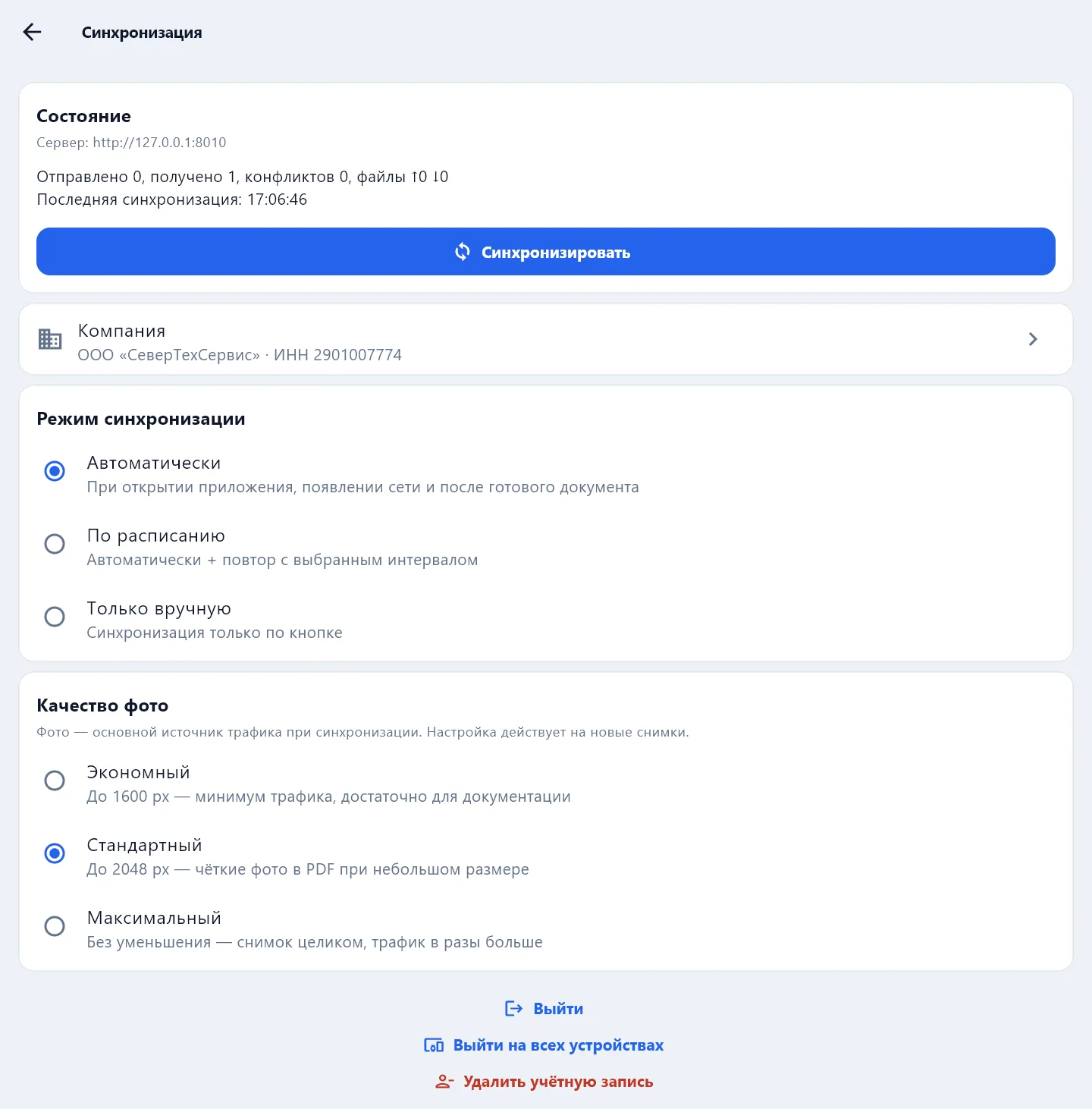
Modes
| Mode | When it syncs |
|---|---|
| Automatically | When the app opens, when the network appears and after a document is finished |
| Wi-Fi only | The same, but only when the phone is on Wi-Fi; phones only |
| On a schedule | Automatically and again after the chosen interval |
| Manually only | Only on the Sync now button |
If mobile data is expensive, choose Wi-Fi only and economical photo quality — see Photos and signatures.
If something did not go out
- Awaiting sync on the main screen does not go down — check the internet and press Sync now.
- Change the temporary password — sync does not run until the password is changed.
- The server does not accept changes: N — the rest went out, but the server rejected these records. Open them and save again; the attempts start over.
- Subscription expired — documents and photos stay on the device, sync resumes after payment.
No internet: direct exchange
If there is no internet at all — on a site, in a workshop, at an object — devices exchange documents and photos directly: over a shared Wi-Fi network, over a cable with internet sharing, or through the phone's hotspot.
Settings → Local sync:
- On one device press Open access — the device address and a connection code appear.
- On the second one press Connect to a device: enter the address and the code and press Sync.
- The app compares the data and transfers what is missing in both directions.
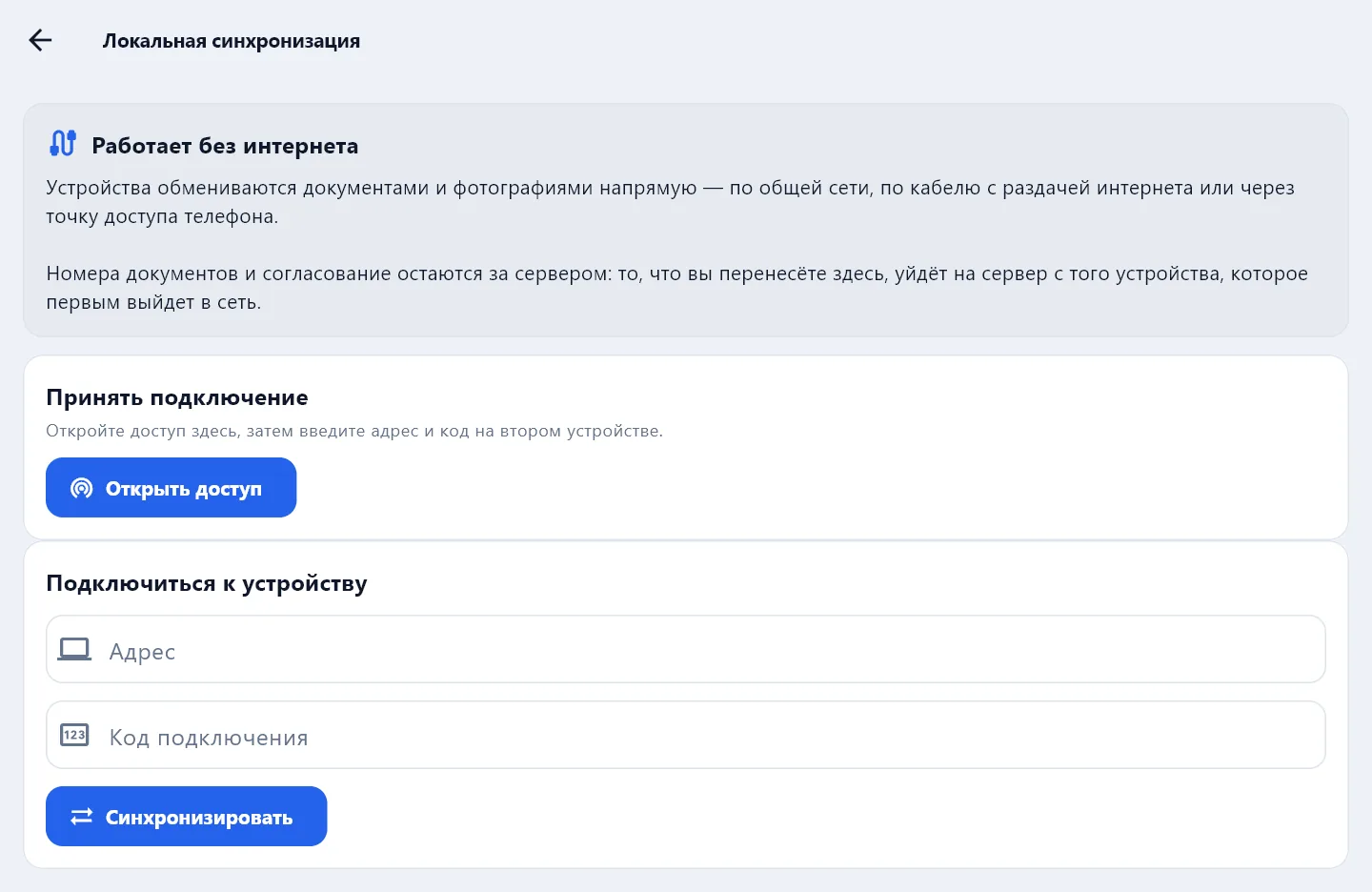
Numbers and approval stay with the server: what was transferred goes to the server from whichever device reaches the network first.
Backup
Settings → Backup → Create a backup — a file with all the app data. Restoring replaces the current data on the device, so restore only from a correct DefAct backup. With a subscription the documents are also kept on the server — on a new phone it is enough to sign in to the account.