The customer portal — signing in and getting started
The portal for the client's chief mechanic and colleagues: approving the contractor's documents, repair requests and the repair history of your equipment.
How to get access
Your contractor opens access — the service company that works in DefAct. When they enter your email on the customer card, an invitation email arrives.
- Open the link from the email.
- Set a password for signing in — twice.
- Done: the portal opens with the contractor's documents.
If you already have a DefAct account — for example, a second contractor invited you — confirm the invitation with your password: the new organisation is added to the same account.
The link in the email is valid for a limited time. If it has expired, ask the contractor to send the invitation again.
Signing in
After that sign in at defact.pro/client with email and password. Forgot the password — Forgot password? on the sign-in form.
How the portal is laid out
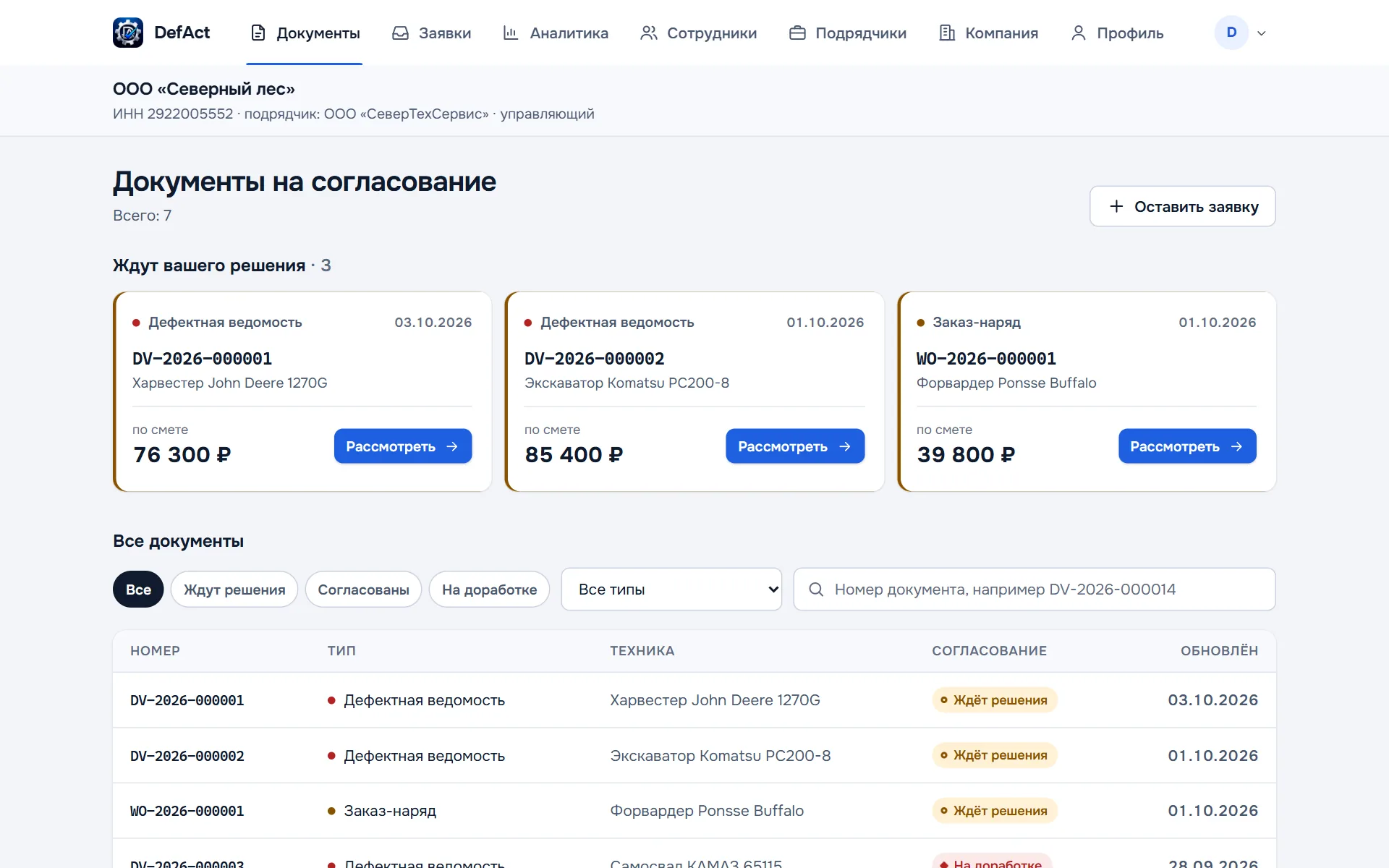
The sections are at the top:
| Section | What is in it |
|---|---|
| Documents | What awaits your decision and all the contractor's documents for your equipment |
| Requests | Requests to contractors for repair and call-out |
| Analytics | Repair history and statistics by equipment |
| Employees | Colleagues with access to the portal and their roles |
| Contractors | Service companies connected to your organisation |
| Company | Details the contractor puts into your documents |
| Profile | Name, position and phone — they sign your decisions |
On a phone some sections hide behind the More menu.
Under the sections — your organisation name, tax number, contractor and your role.
Several organisations, branches and contractors
- Organisation. If you were invited to several organisations, switch between them in the header: Company → Go to.
- Branch. If the organisation has branches, you can view one branch or the whole organisation.
- Contractor. If several contractors work with you, you can view one contractor's documents or all of them.
Tutorial and theme
In the menu under your avatar at the top right — the theme (light, dark or system), Take the tutorial and Sign out. The tutorial highlights the portal sections and briefly explains what is where; on the first sign-in it starts by itself.