Work order and completion act
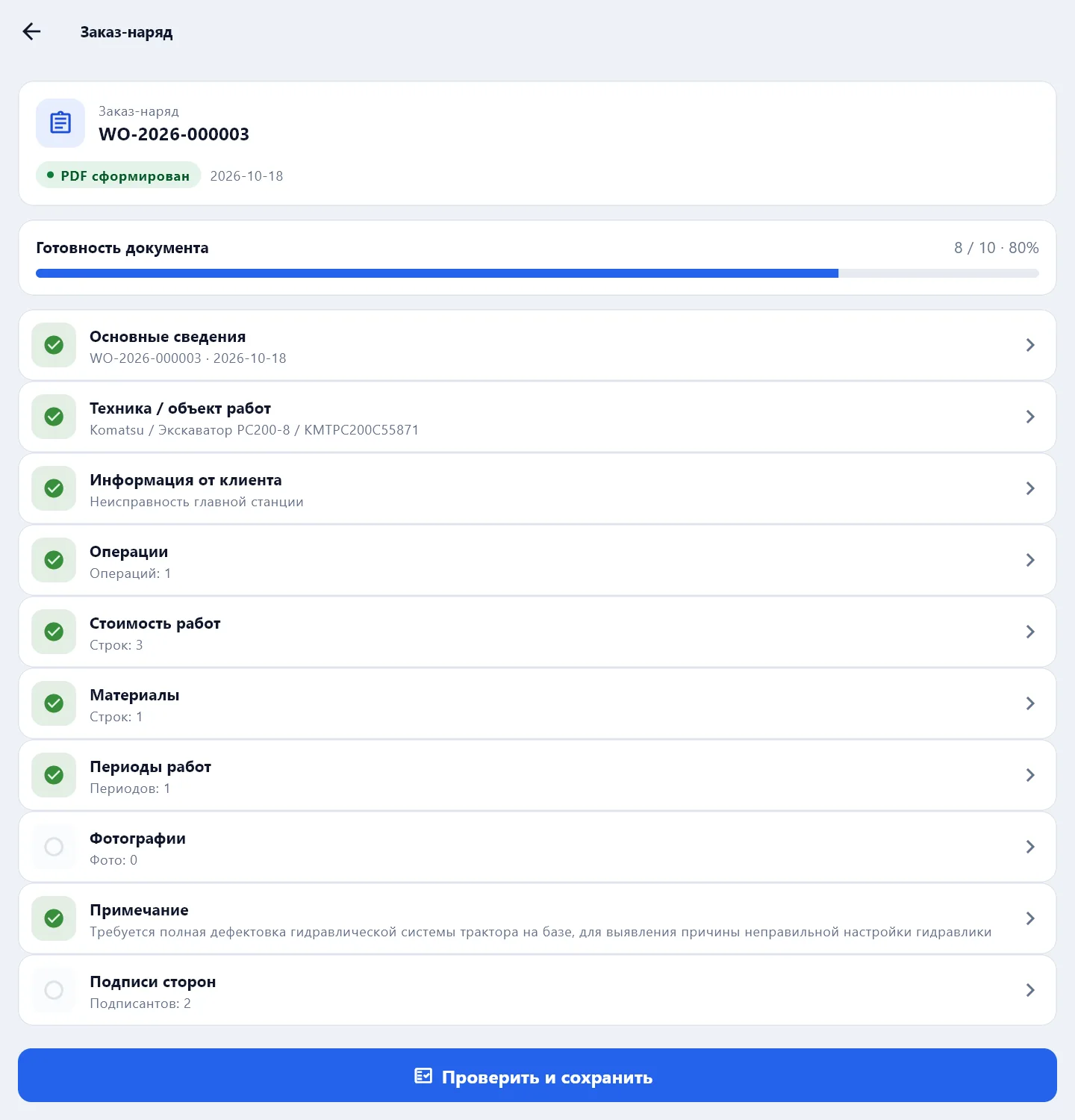
A work order says what we do, a completion act says what was done. They share sections: equipment, operations with labour input, cost of work, materials and work periods.
Sections
| Section | What is in it |
|---|---|
| Basic details | Number and date, customer, equipment owner, the customer's responsible person |
| Equipment / object of work | What we repair: make, model, numbers, hours |
| Information from the customer | What the customer came with, what they reported about the fault |
| Operations | The cause or defect plus operations with labour input in hours |
| Cost of work | Work lines: quantity × price; the cost is calculated automatically |
| Materials | Parts and materials — from the catalogue or new |
| Work periods | When work started and finished |
| Photos | Photos before, during and after the work |
| Note | Anything that did not fit the sections above |
| Signatures | Who signs on both sides |
Customer and equipment owner
The customer and the equipment owner can differ — for example, equipment on lease or rent. If they are the same organisation, press Copy from the customer.
The responsible person is picked from this customer's list of responsible people; choose the customer first. A new responsible person can be added right here — Add to the list of responsible people, including from phone contacts. With an email, the document can be sent to them for approval in the portal.
Operations
A new operation is entered as a cause / defect with several operations under it — each with its own name and labour hours. The Add button adds the next operation.
Cost of work
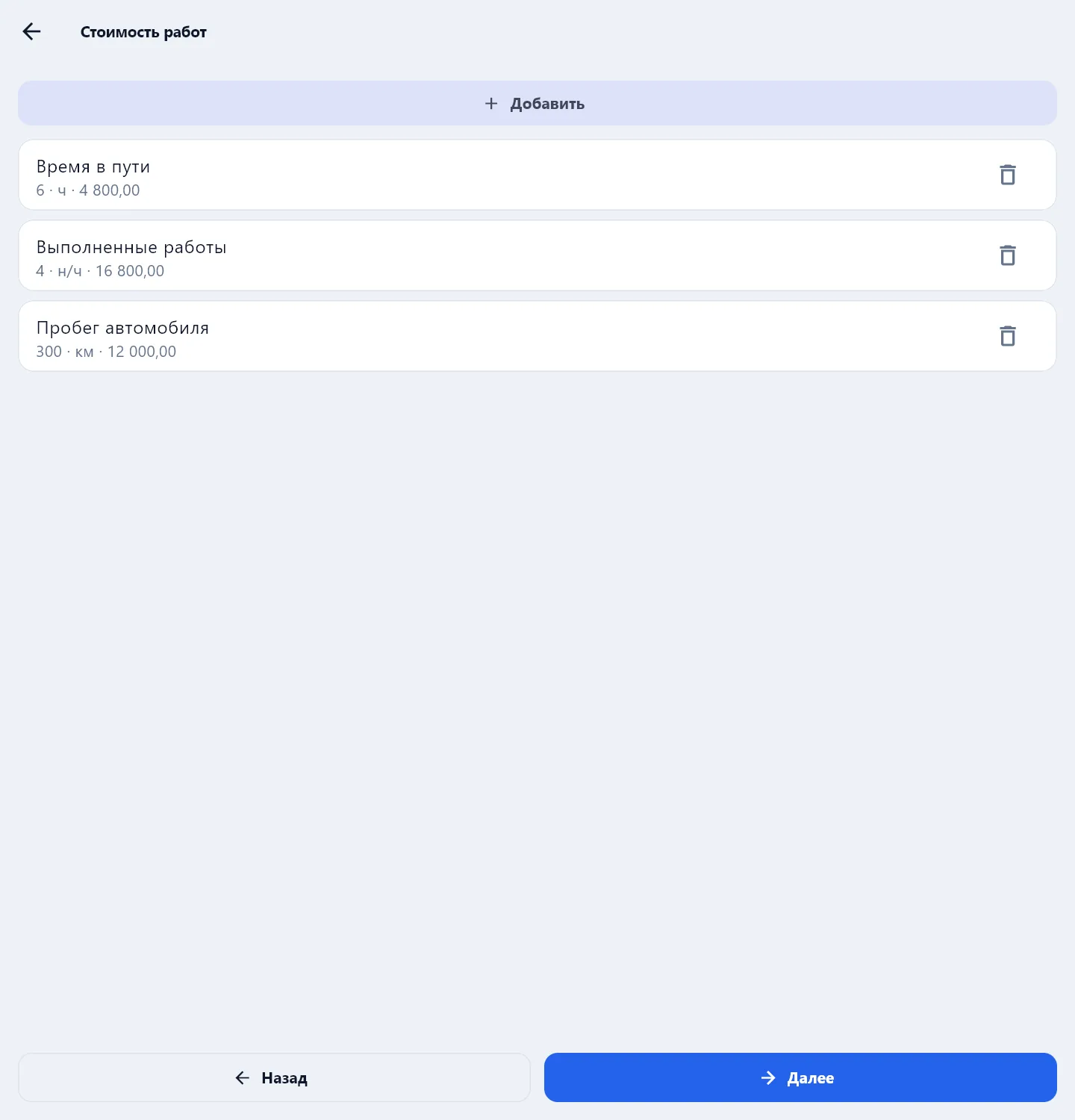
A new work order already has four lines: Travel time, Work performed, Vehicle mileage and Other costs. Enter quantity and price in each — hours, kilometres or pieces — and the cost is calculated automatically. Delete a line you do not need, add a missing one with Add.
Materials
Choose from catalogue fills in the name, article number, unit and price from the Parts and materials directory. The price and quantity can be changed; the line cost is calculated automatically.
Completion act
When the work is finished, start the act from the work order: Create based on: Completion act on the check screen — the customer, the equipment and the responsible person carry over.
Blank number
The work order number is issued by the server: WO-2026-000042, the completion act has WCA-…. If you have a paper blank with your own series, enter its number in the basic details — a manually entered number wins over the server one and is what gets printed.
Request → work order
If the customer accepted your answer to a request, the work order can be started straight from the request: Company → Requests from customers → the request → Start a work order. The address, the date and the description from the request carry over.
Blanks and samples are on the site: work order and completion act.