All sections

Getting started

  1. How DefAct is put together
  2. Quick start for a service company
  3. Installing the app and signing in

Technician

  1. The app — main screen and tabs
  2. Jobs from the manager
  3. How to fill in a document
  4. Defect report
  5. Estimate and prices
  6. Equipment inspection act
  7. Work order and completion act
  8. Photos and signatures
  9. PDF and sending to the customer
  10. Document history
  11. Sync and working offline
  12. Directories — customers, equipment, work and parts
  13. Settings, tutorial and support

Manager and dispatcher

  1. The service company cabinet
  2. Requests from customers
  3. Dispatch — jobs for mechanics
  4. Internal review and work control
  5. Customers and customer access
  6. Team, roles and devices
  7. Company and details
  8. Subscription and payment
  9. Directories in Excel — company data
  10. 1C integration
  11. Profile, password and deleting an account

Customer

  1. The customer portal — signing in and getting started
  2. Approving the contractor's documents
  3. Repair requests to contractors
  4. Equipment analytics
  5. Employees, contractors and the customer's details

Solo technician

  1. Solo technician — working alone

Questions and problems

  1. Common questions

Document history

All documents on the device — with search, filters and statuses. From here you open an old document, its PDF, or continue a draft.

What is in the history

The History tab — every document on this device: drafts, ready, sent and approved. Each with its type, number, customer, equipment, status and date.
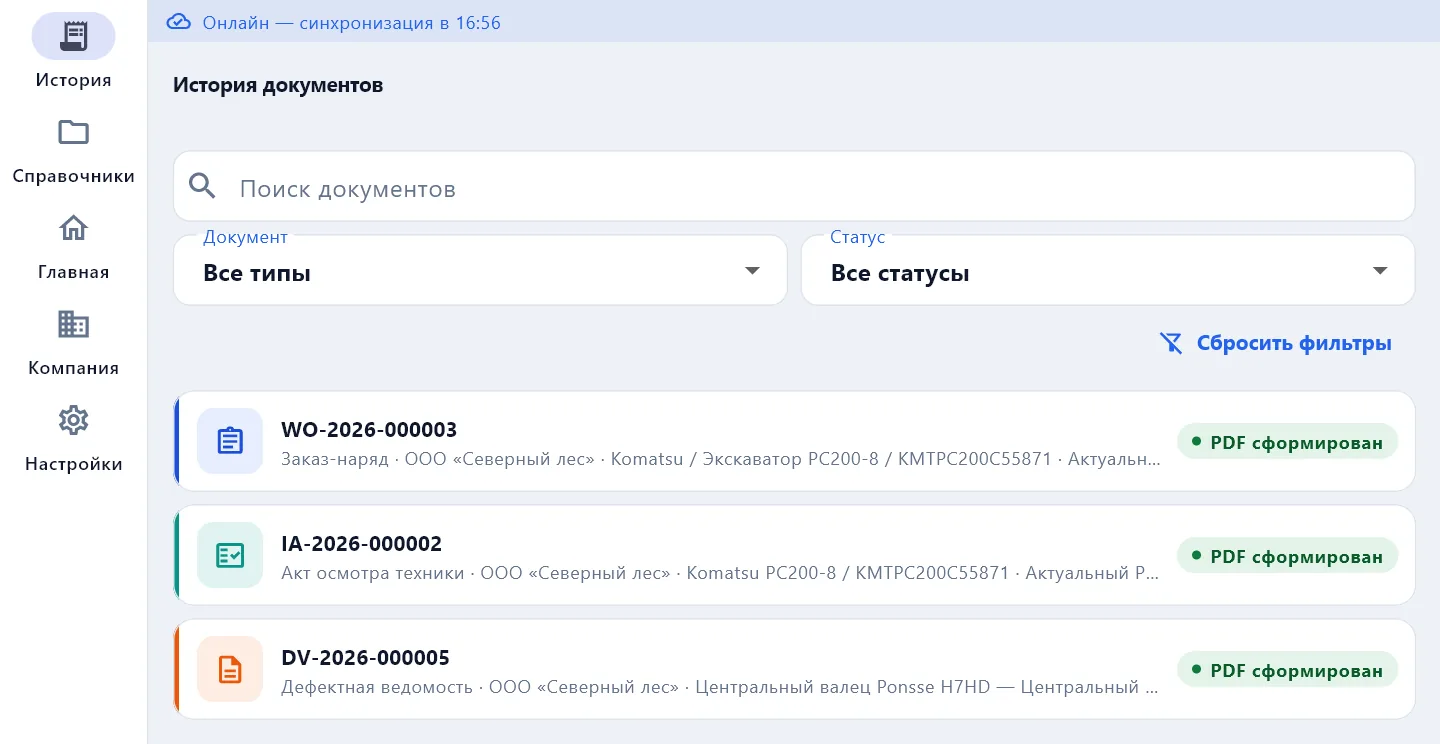
History: search and filters
  • Search — by document number, customer, the customer's tax number or phone, equipment.
  • Filters — by document type and status.
  • A Outdated PDF mark — the document was edited after the PDF; Current PDF — all in order.

On a computer the history opens in two columns: the list on the left, the selected document on the right.

What you can do

  • Open a document and continue a draft.
  • Open, print or forward the PDF again.
  • Send for approval a document that has not been sent yet.
  • Fix a document returned for rework.

Whose documents are visible

The history holds documents made on this device and those that arrived from the server during sync. A technician sees their own documents. Other employees' documents are not copied to the phone — the manager looks at them in the cabinet on the site.

A new phone? Sign in to the same account — after sync your documents come back from the server.